Artificial intelligence to prepare the service: an assistant that knows your church
- Author
- AdoraSync team
- Last updated
- Reading time
- 5 min read
- News
- Service coordinators
- Announcements
Preparing a service involves many small tasks: remembering what was sung last week, finding songs for Communion, writing the retreat announcement and turning what arrived on WhatsApp into slides. AdoraSync now has an AI assistant that does that work with you, using your church's real data.
An assistant that knows your church
General AI tools don't know what your church sang on Sunday or who is on the media team. This assistant does: it looks up your programs, your song library, your team and your announcements, always with the permissions of the person asking.
- It answers with your organization's data, not with guesses.
- It only sees what your role allows you to see.
- It never changes anything on its own: it suggests the text and you decide.
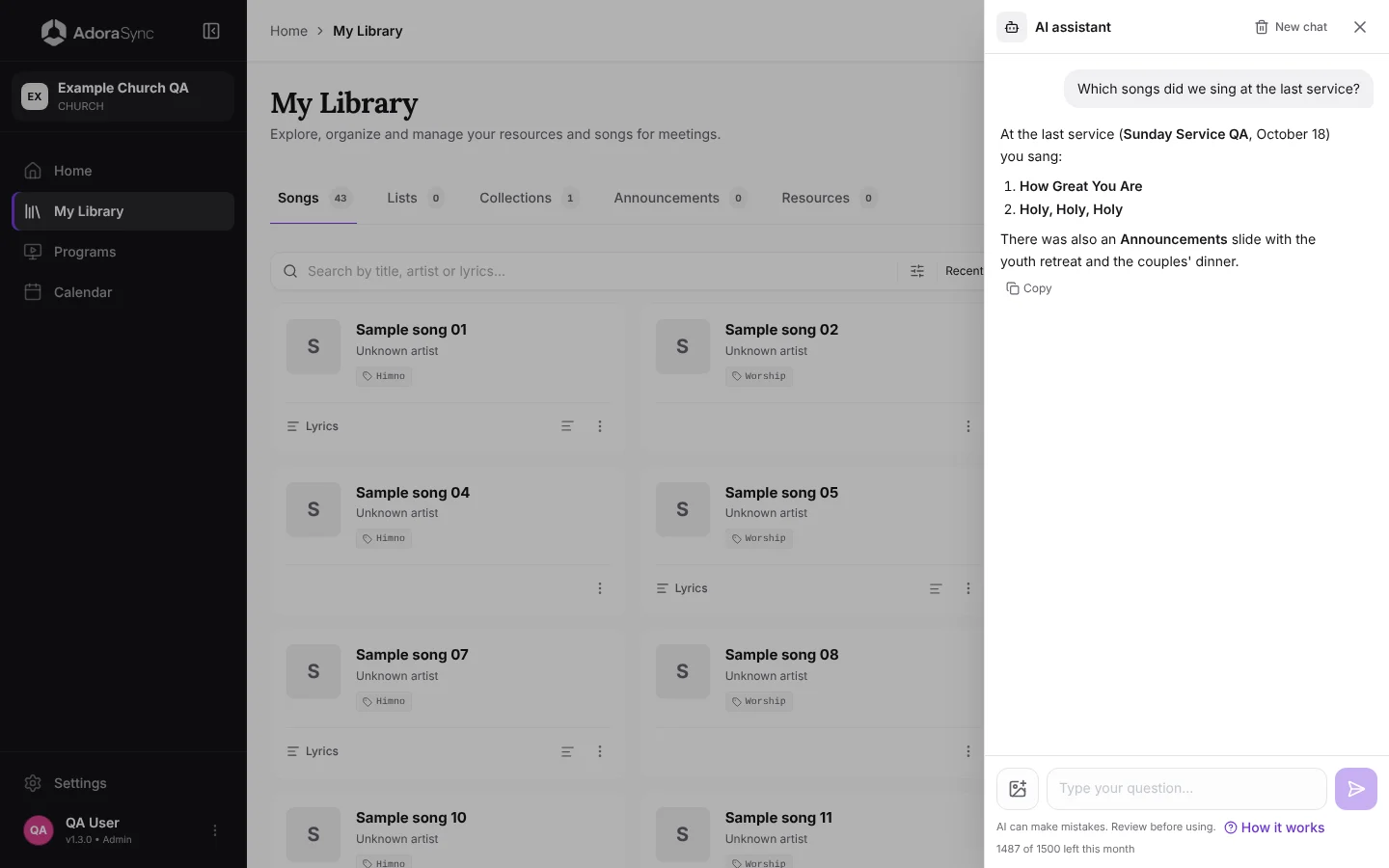
Five things you can ask it this week
- «Which songs did we sing at the last service?», so you don't repeat the setlist.
- «Suggest an order of service for Communion with songs from my library.»
- «Write a short announcement for the youth retreat.»
- «Who are the media technicians?», when you need to build the team.
- «How do I connect the projector?». It answers with the steps from the Help Center.
From a WhatsApp message to your program and library
Paste the service order as the team received it. The assistant drafts the program, proposes YouTube links as media and asks which source to use if it finds a library match for a hymn that came without a link. Review the draft before creating the program.
To reuse those songs in future services, ask the assistant to prepare missing songs and add links to existing ones. Review each proposal in its form. The form recognizes videos already linked under a different YouTube URL.
From the WhatsApp flyer to the announcement on screen
In many churches announcements are born as an image and a long message in the WhatsApp group. Turning them into slides meant copying and pasting by hand: the title, the dates, the address, the phone number…
With From an image you upload the flyer, paste the message and the AI fills in the announcement: title, dates and times, location, contact and registration link. It splits the rest of the text into slides that read well on screen, and the flyer becomes the announcement image.
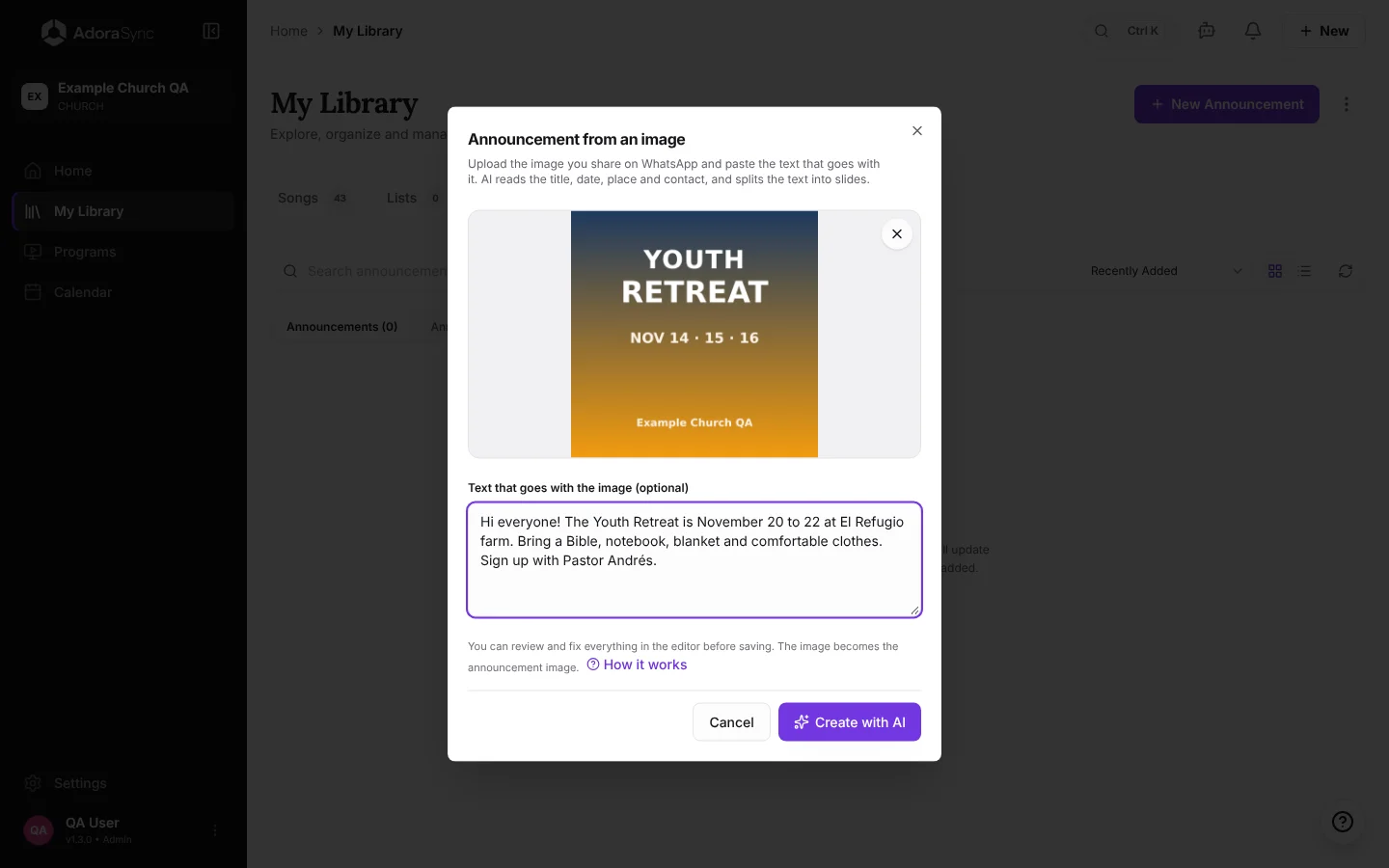
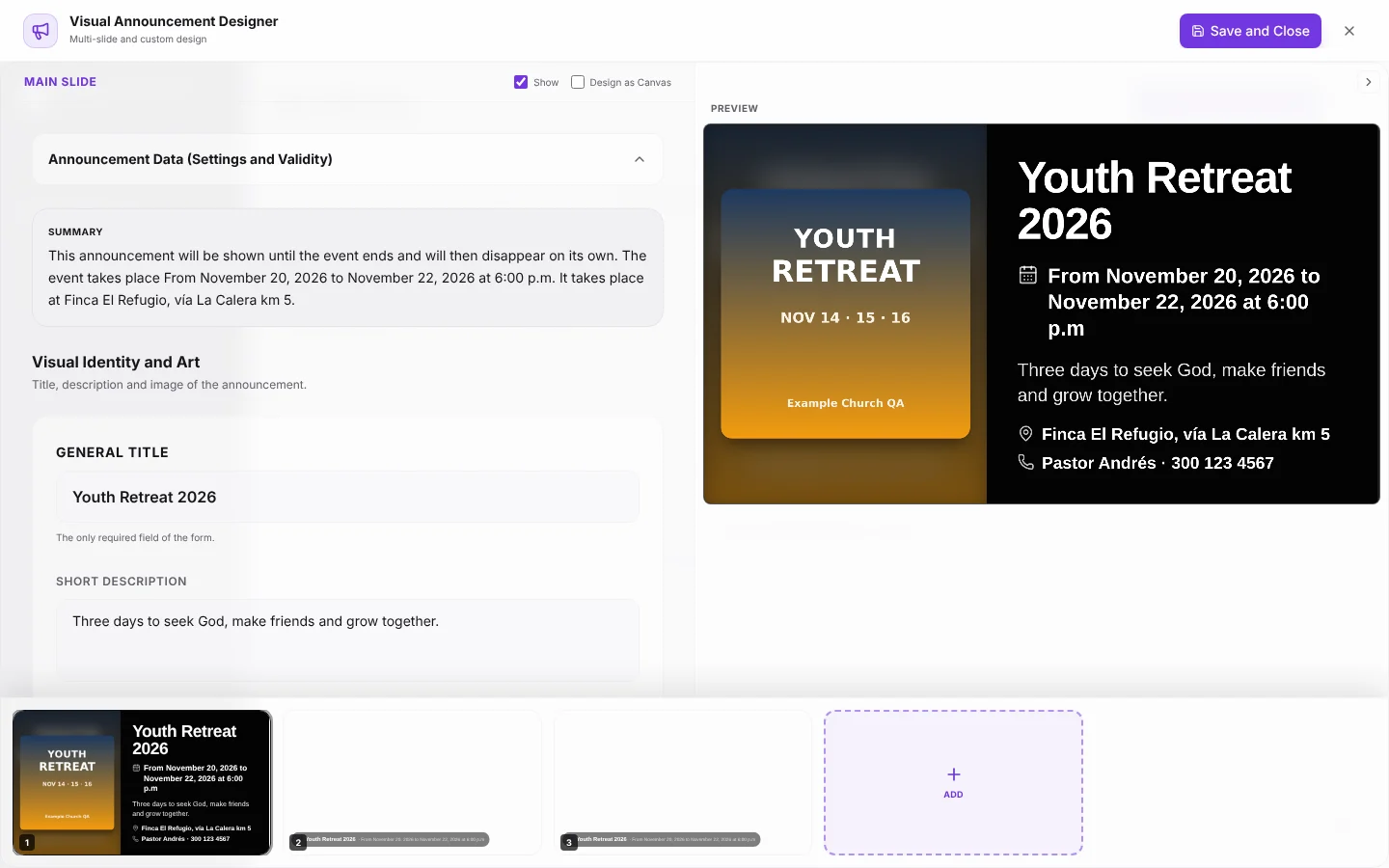
You can also start from the chat: type Create announcement and the assistant shows you two buttons, From an image and From scratch. Or paste the flyer straight into the chat (Ctrl V, dragging it or with the image button) and tap Create announcement with this image: it arrives already loaded, without uploading it again.
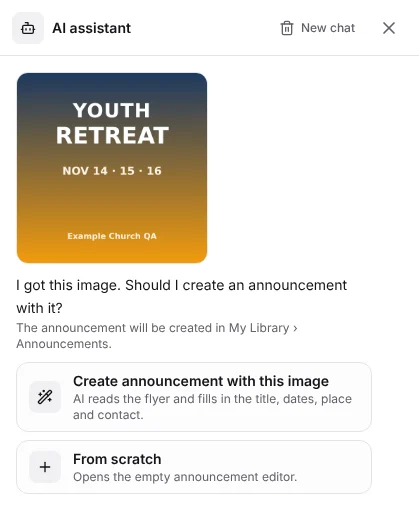
Tip:Before saving, check dates and names. The AI reads very well, but a flyer with decorative lettering can confuse it.
New images for your backgrounds and announcements
When you don't have the image you need, you can create it: describe what you're looking for, say what it's for (a lyrics background, a poster, an invitation…), choose or mix styles (photo, watercolor, screen print, art deco…) and in a few seconds you have a new image, saved in your church's Google Drive.
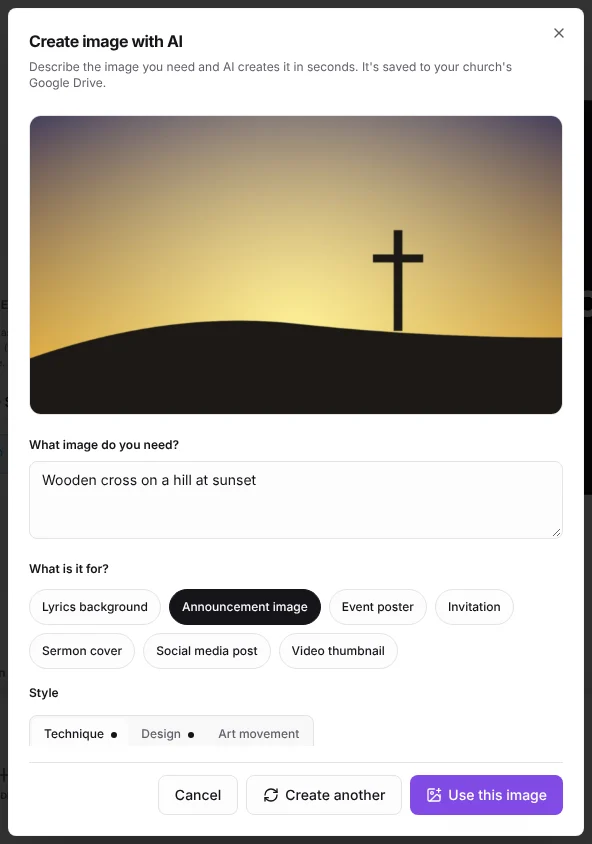
Tip:Ask for the image without text and put the words on the slide. That way the title and dates are always spelled right.
Which plans include it
| Plan | Messages per month | Images per month |
|---|---|---|
| Free | Not included | Not included |
| Pro | 300 | 20 |
| Church | 1,500 | 60 |
The limits are for the whole organization and renew on the 1st of each month. Each question and each announcement created from an image count as one message; each image created counts as one image.
Frequently asked questions
Does the assistant save my conversations?
History is saved in this browser for each account and organization. Attachments are available during the session. Open Conversation history to resume a chat. Use Archive conversation to move it to Archived. Restore it there and open it again under Recent.
Can it see data my role doesn't let me see?
No. It queries with your same permissions, so it only answers with what you could open in the app.
Can it create images?
Yes. With Create with AI you describe the image you need, for example a background for a song, and it is saved in your church's Google Drive.
Does it work on a phone?
Yes. The icon is in the top bar and the assistant opens in full screen.
How to start today
Create your free AdoraSync account and build the program for your next service in minutes.
The step-by-step guide is in How to use the AI assistant.