Google Drive
How to connect your church's Google Drive
AdoraSync stores your organization's videos, images and documents in your own Google Drive. That way there are no storage limits imposed by the platform and your files are always in your account.
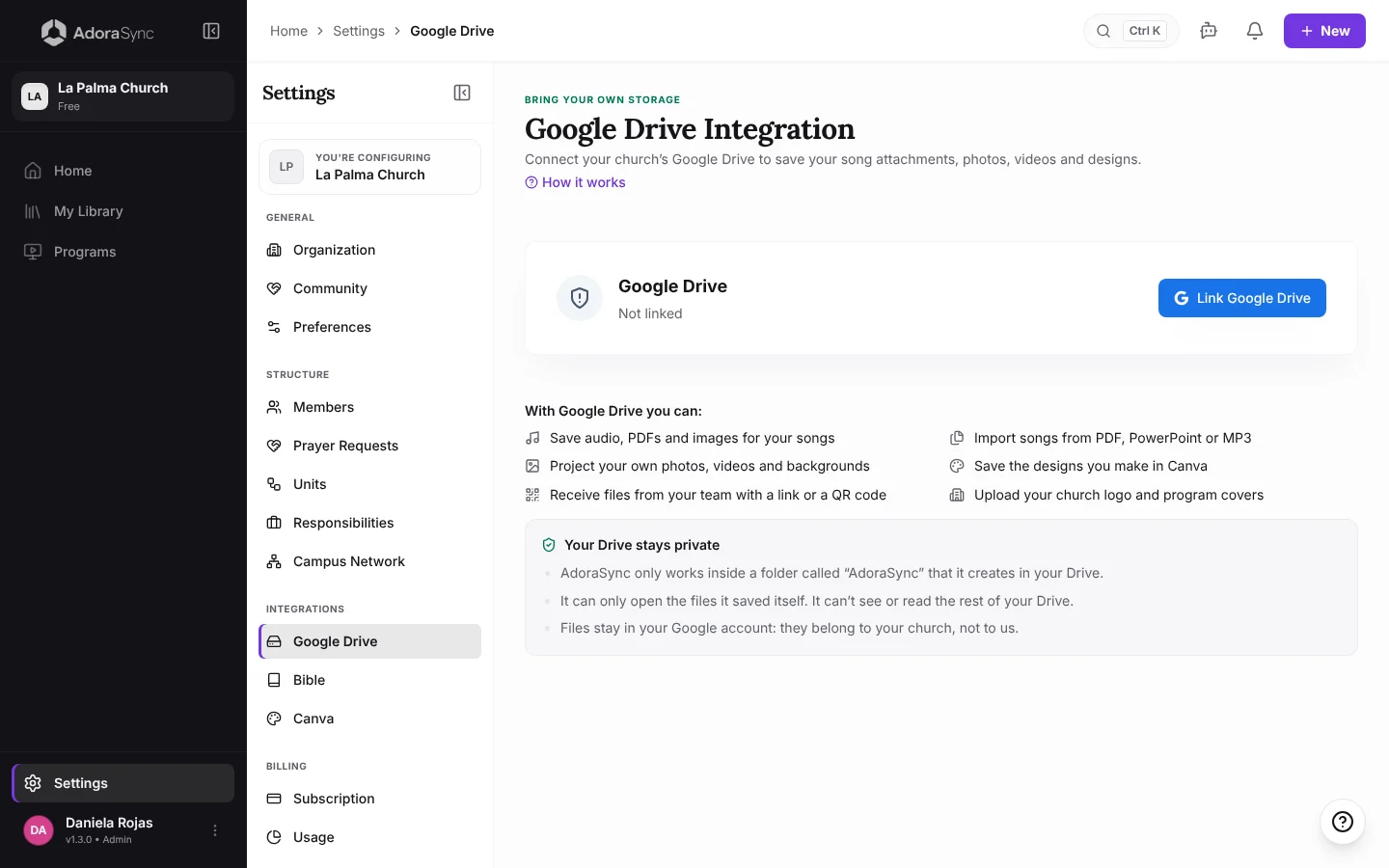
Connect Google Drive
- Sign in with an Admin or Co-Admin user.
- Go to Settings › Integrations › Google Drive.
- Authorize the connection with the church's Google account.
What it is for
Without Drive you can already create programs, write your songs, show the Bible and project. Drive is needed when you want to store files:
- Audio files, PDFs and images for your songs.
- Importing songs from PDF, PowerPoint or MP3.
- Projecting your own photos, videos and backgrounds.
- Saving the designs you make in Canva.
- Receiving files from your team with a link or a QR code.
- Your church's logo and your program covers.
What it can see in your Drive
- AdoraSync only works in a folder called AdoraSync that it creates in your Drive.
- It can only open the files it saved itself. It doesn't see or read the rest of your Drive.
- The files stay in your Google account: they belong to your church.
Note:Google guarantees this through the permission the connection asks for: access only to the files the app itself creates, not to your whole Drive.
If you skip it when creating your organization
The last step when creating your organization is Connect your storage. If you tap Skip for now, we tell you which features will ask for it and you can carry on without Drive with Continue without Drive.
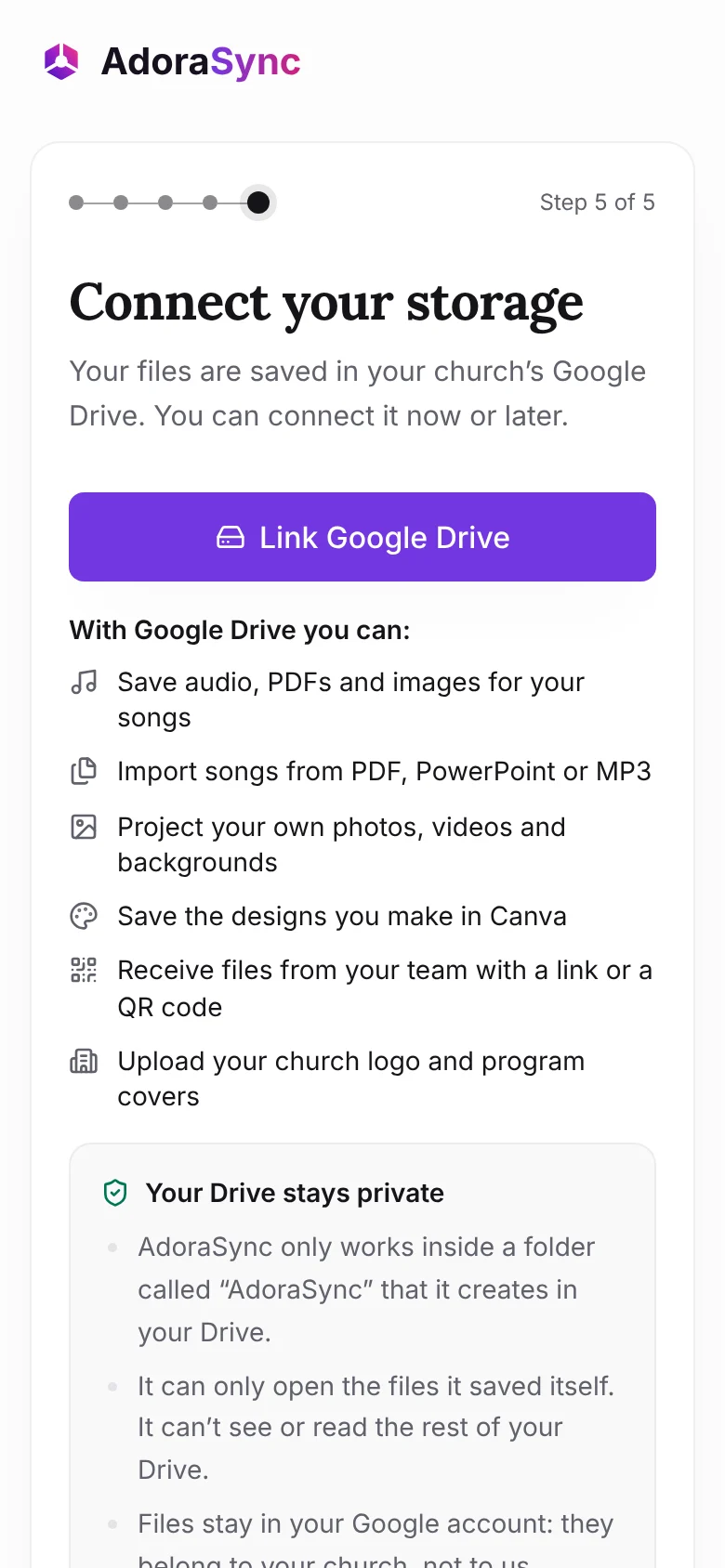
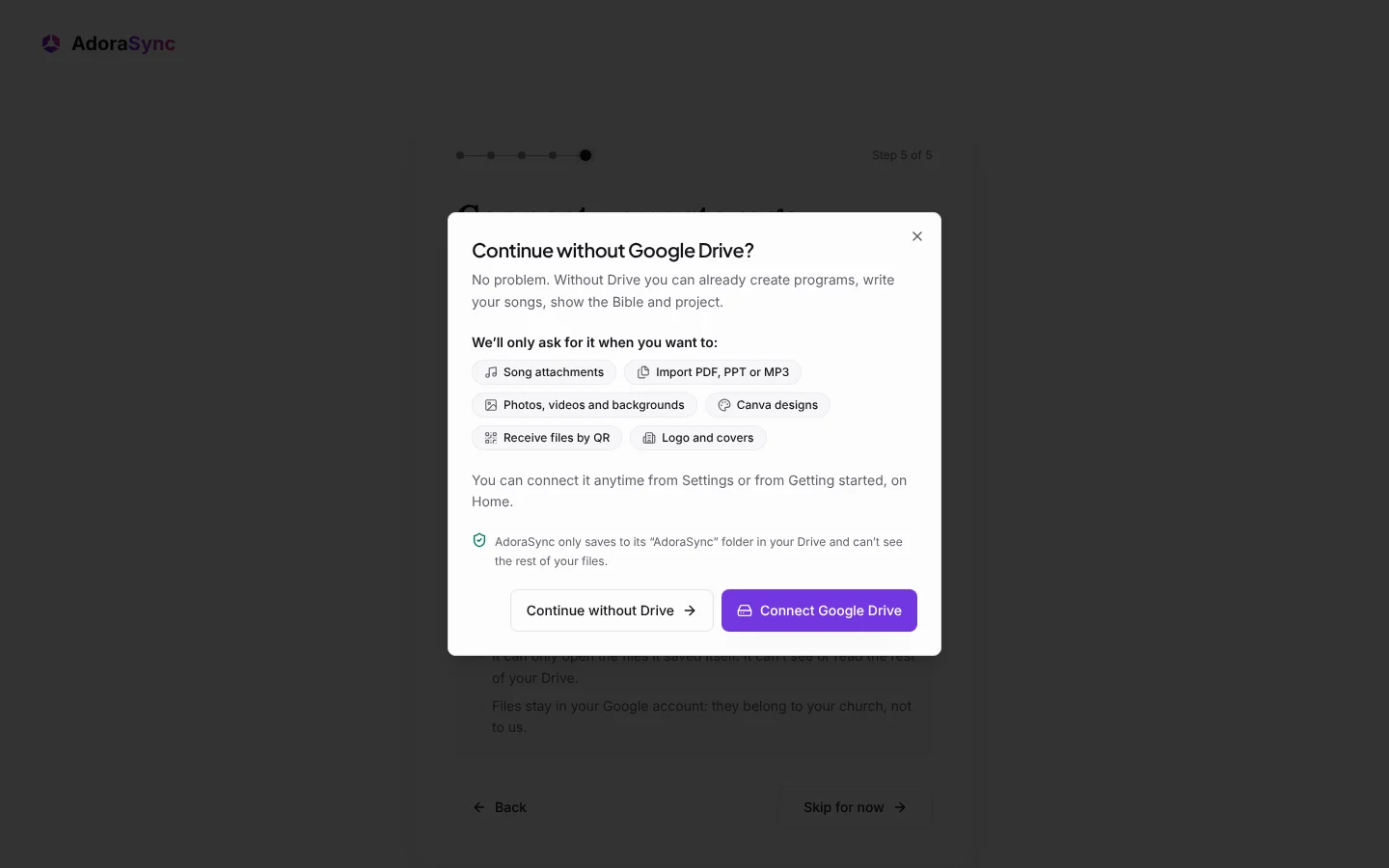
When you want to use one of those features, we will ask you to connect it at that moment. You can also find it in Settings › Integrations › Google Drive and in Getting started, on Home.
Good to know
Tip:Use an institutional Google account rather than a volunteer's personal one: if that person leaves the ministry, the files stay in the church's account.
People outside your team who send you material with an upload link don't need access to your Drive: AdoraSync uploads the file for them.