How to use a phone as a camera in the service, with a newsroom look
- Author
- AdoraSync team
- Last updated
- Reading time
- 6 min read
- Livestream
- Media technicians
- Camera
In many churches, people at the back can't really see the preacher, and those following the service from home only see a slide. A camera solves both, but not every church can buy one. The good news: almost everyone on the team carries one in their pocket. This guide explains how to use a phone as a live camera, how to combine it with the lyrics and how to give it a newsroom finish.
Why a camera changes the service
Showing whoever is preaching or singing on the big screen brings the whole congregation closer, especially in long sanctuaries or rooms with pillars. And on the livestream, seeing people instead of only slides makes those at home feel part of the service.
- People far from the pulpit can see faces and gestures.
- The livestream shows the church, not just text.
- A baptism, a child dedication or a testimony can be seen up close.
What you need
- A phone with a camera and battery (ideally plugged into a charger).
- A simple holder or tripod so the picture doesn't shake.
- The phone and the projector computer on the same church Wi-Fi.
- The service program open live in AdoraSync (Pro or Church plans).
Tip:You don't need to install any app or sign in on the phone: just scan a QR code.
Step by step: from the phone to the screen
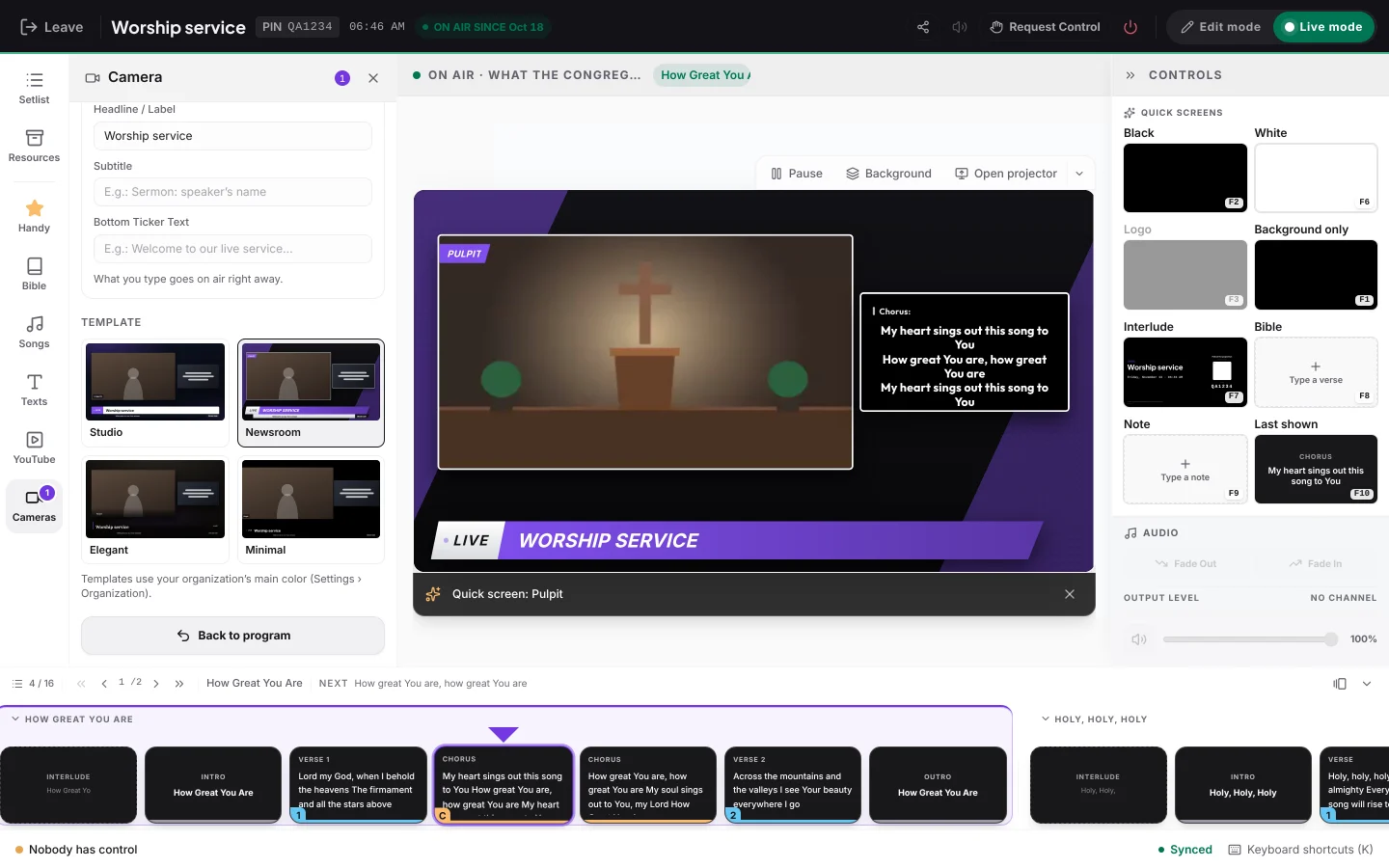
- In the live panel, tap the camera button to open the Camera menu.
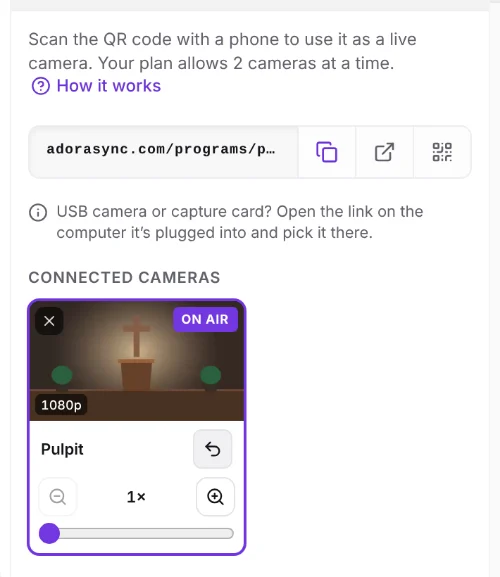
- Scan the QR code with the phone that will film.
- Type a name such as Pulpit, allow camera access and tap Start streaming.
- In the Camera menu you'll see its live video. With that camera's button you show it alone, full screen.
Two cameras and the lyrics, like a newscast
A full-screen camera covers the lyrics, and full-screen lyrics hide the people. Television solves this by combining: the camera large, the text in a box and a lower third at the bottom. You can do the same in the service.
- Under Layout, choose how many boxes you want: two side by side, a main one with another next to it, a small box in the corner, three or four.
- Choose what goes in each box: a camera or the Current slide, which is the lyrics or verse on air.
- Type the headline, for example the name of the service or of the preacher. The lower third turns on by itself as you type.
- Under Template, choose the style: Studio, Newsroom, Elegant or Minimal, and tap Put on air.
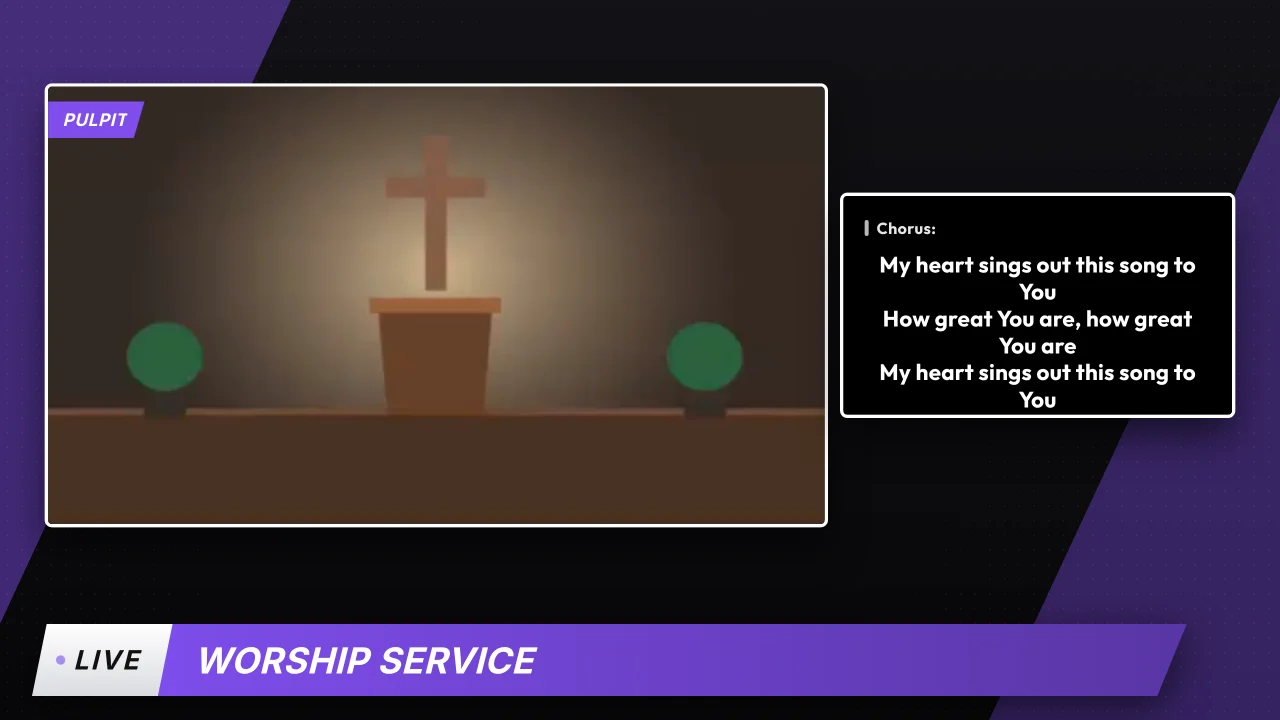
Templates use your church's main color and logo, so the screen looks like yours and not generic. While on air, whatever you change goes out instantly: there's nothing to confirm again.
What if you already have a real camera?
The same link works on a computer. If you have a webcam, a USB camera or a professional camera connected through an HDMI capture card, open the link on that computer and pick it in Camera on this device. That way you can mix the phone in the balcony with the main camera of the sanctuary.
Tips for a good picture
- Hold the phone horizontally: the picture fills the screen better.
- Look for light in front of the preacher, not behind.
- Use Auto quality: it lowers itself if the network can't keep up and the video doesn't freeze.
- Test everything before the service starts, with the projector on.
- Phone in hand. Any movement shows up big; use a holder.
- Mobile data. The video goes over the church network; on data it may cut out.
- Phone screen turned off. Keep the camera page open while streaming.
Frequently asked questions
Do I need to install an app on the phone?
No. You scan a QR code and the camera works in the phone's browser, without signing in.
Does the video carry sound?
No. Audio still comes from the church's sound desk, so it isn't duplicated on the livestream.
How many cameras can I use at once?
It depends on the plan: Pro allows 1 and Church 2. With 2 cameras you can combine them with the slide in three boxes.
Does it work with a professional camera?
Yes. Connect it to the computer with an HDMI capture card, open the camera link there and pick it in Camera on this device.
How to start today
Create your free AdoraSync account and build the program for your next service in minutes.
The step-by-step guide is in How to use your phone as a live camera.