How to livestream the service with lyrics on screen: OBS, ATEM and green screen
- Author
- AdoraSync team
- Last updated
- Reading time
- 8 min read
- Livestream
- Media technicians
- OBS
Every Sunday there are people following the service from home, from the hospital or from another city. If they can't see the lyrics on the livestream, all they can do is watch. With the lyrics over the camera they can sing with the church. This guide explains how to do it with OBS or with an ATEM switcher, which background to choose and how to leave it ready so nobody has to touch anything on Sunday.
Why streaming the sanctuary screen isn't enough
The easiest option is to send the livestream the same thing that's projected in the sanctuary. It works, but it has a cost: during the song, whoever is watching from home sees a full-screen slide and loses the people, the worship team and the preacher.
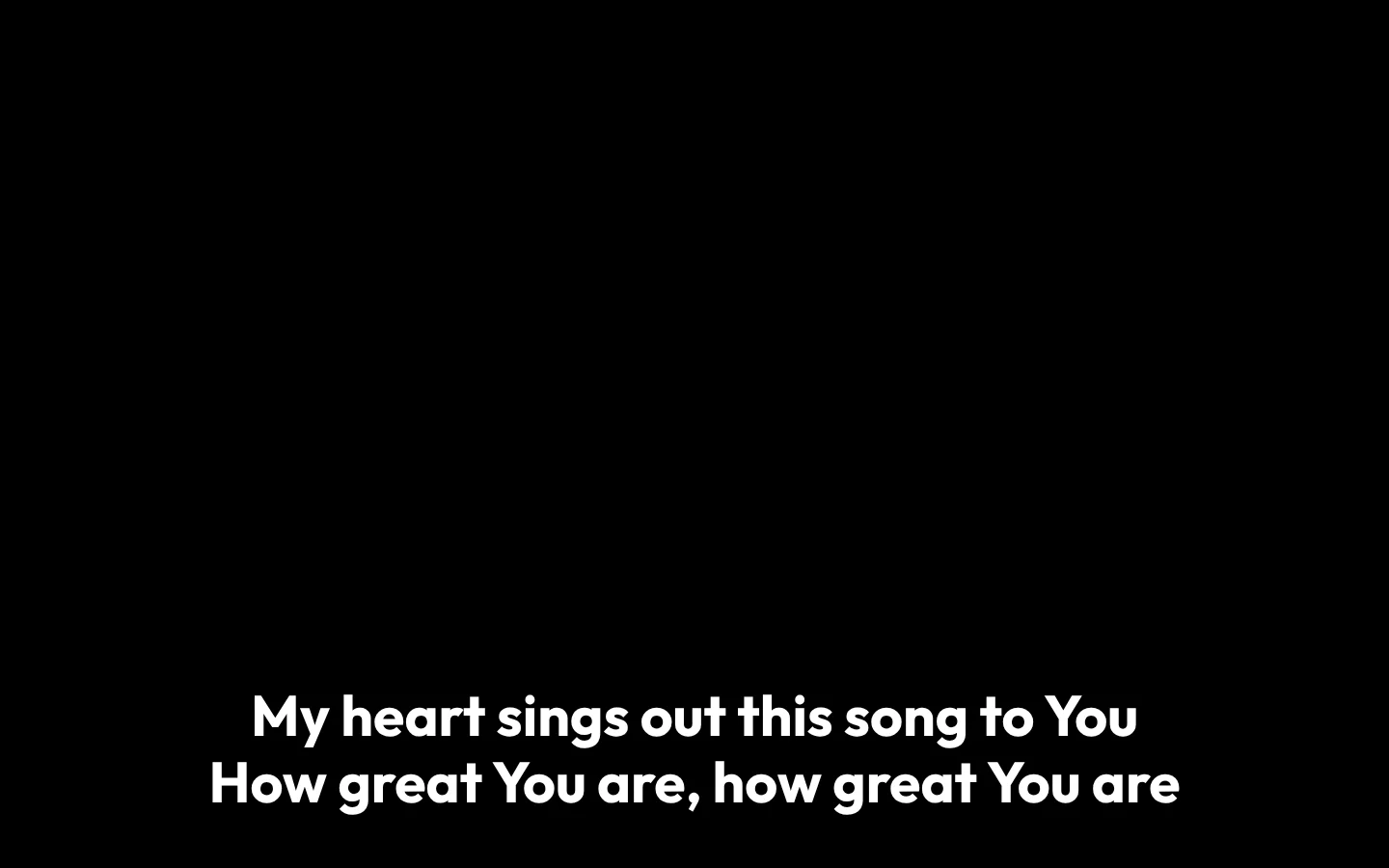
Television solved this years ago with the lower third: the text goes in a band at the bottom and the picture stays fully visible above. For a church, that means the online congregation can sing and feel part of the service.
- The camera is fully visible; the lyrics don't cover faces.
- Verses appear with their reference while the Bible is read.
- Announcements and videos can still go full screen when it makes sense.
Three screens, three needs
A service with a livestream usually has three different audiences, and each one needs to see something different:
| Screen | Who watches it | What it needs |
|---|---|---|
| Main screen | The congregation in the sanctuary | Large lyrics, verses, announcements and videos. |
| Stage display | Whoever sings or preaches | The current lyric, the next one and the clock. |
| Broadcast | Whoever follows the service online | The camera, with the lyric in the bottom band and no duplicated audio. |
In AdoraSync all three come from the same live program. When the technician advances a slide, all three change at once; nobody has to copy lyrics into another program or sync anything by hand.
What you need
With OBS (the most common)
- A computer with OBS Studio and your camera connected (via USB or a capture card).
- The service program built, with the songs and readings.
- A stable internet connection for the livestream.
With an ATEM or another HDMI switcher
- A computer with a free HDMI output (or an adapter with several).
- A free input on the switcher to receive the lyrics.
- The cameras already connected to the switcher, as usual.
Tip:You don't need a computer dedicated only to lyrics. The same machine running the live program can open the broadcast output on a second screen or inside OBS.
Step by step with OBS
OBS can show a web page as if it were one more layer of the scene. That's the key: the broadcast output is a web page with a transparent background, so OBS only draws the lyric.
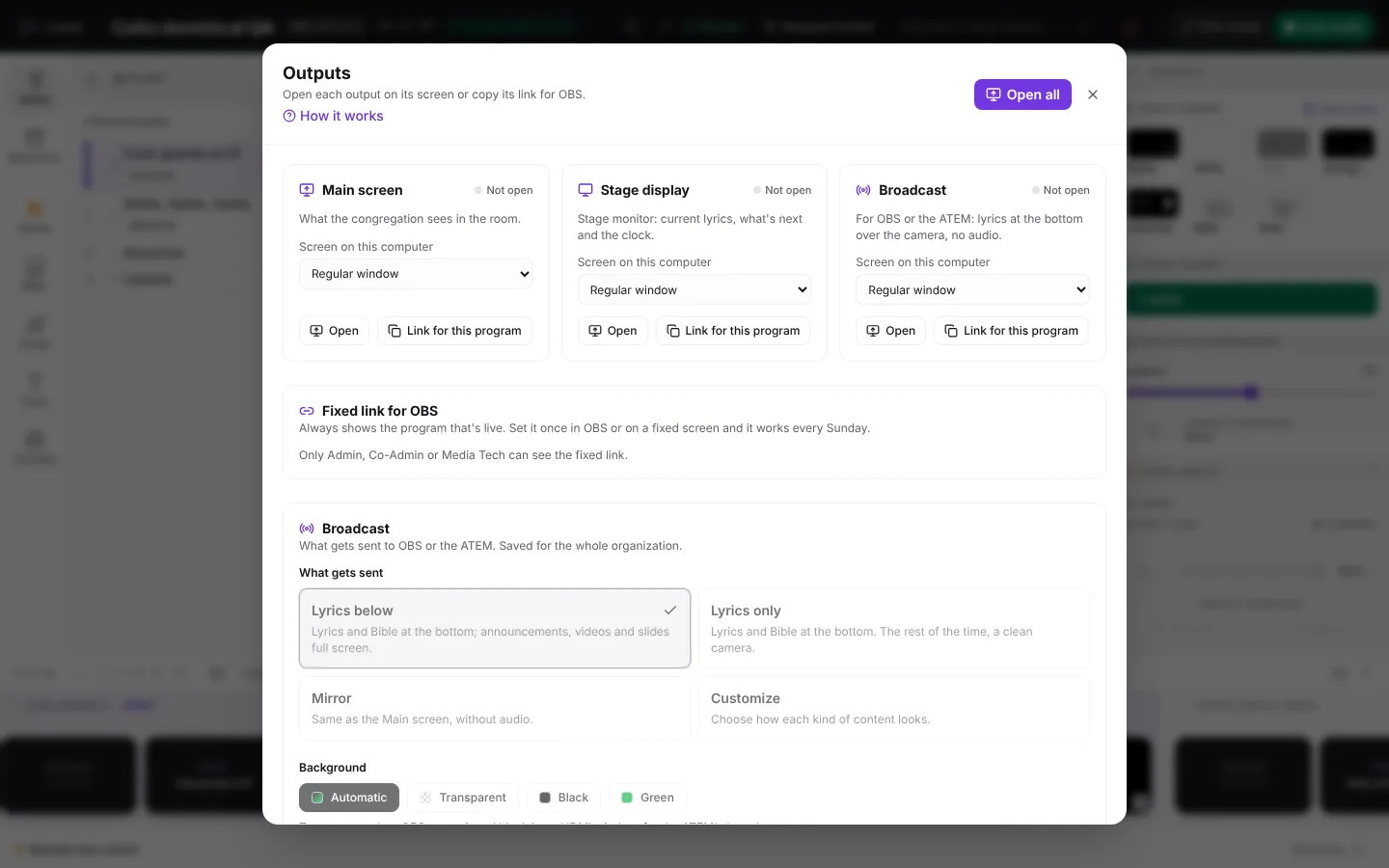
- Open the live program and tap Outputs.
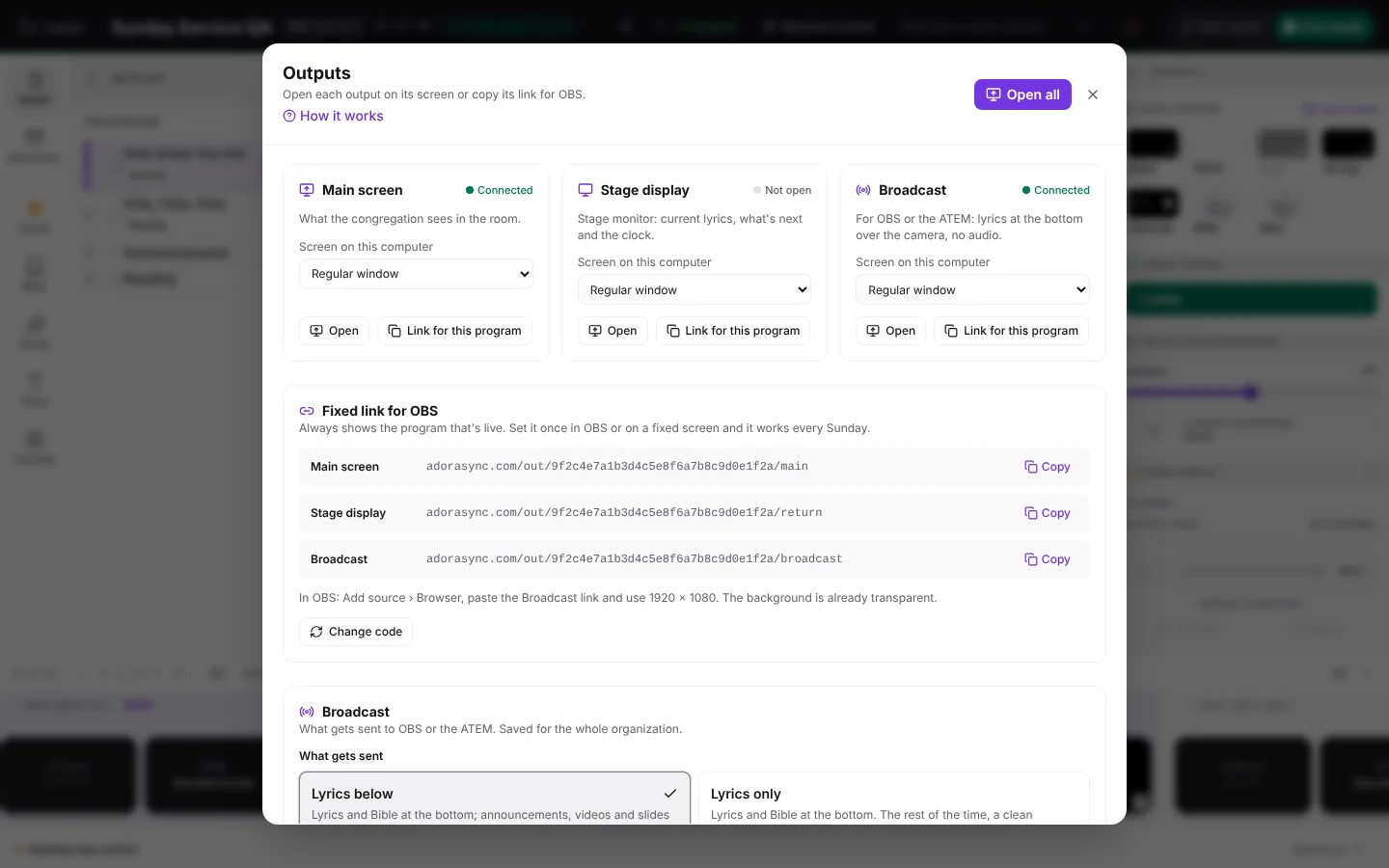
- In Fixed link for OBS, copy the Broadcast link. That link always shows whichever program is live, so you set it up only once.
- In OBS, in the camera scene, add a Browser source, paste the link and use 1920 × 1080.
- Leave the browser source above the camera. You don't need filters or color keys.
Optional: let OBS switch scenes on its own
If you have a wider shot scene for songs, OBS can switch to it automatically when there's a lyric on air and go back to the normal scene afterwards. Turn it on in Outputs › Switch scenes in OBS, with the WebSocket server built into OBS.
Step by step with an ATEM
An HDMI switcher doesn't understand transparency: it receives a full image. That's why the lyric is sent on a solid-color background, and the switcher "cuts out" that color with a key.
- Connect an HDMI output from the computer to a free input on the ATEM.
- In Outputs, on the Broadcast card, choose that screen and tap Open. It opens full screen on the HDMI.
- Leave the background on Automatic (black over HDMI).
- On the ATEM, turn on an upstream key of type Luma with that input. The black disappears and only the white lyric remains.
Green, black or transparent background?
It's the most common question, and the answer depends on how you key the lyrics:
| Background | When to choose it | Advantage |
|---|---|---|
| Transparent | OBS with a browser source. | Perfect edges and soft shadows; nothing to adjust. |
| Black | ATEM or another switcher with a luma key. | Very stable; the white lyric keys cleanly. |
| Green | Switchers or software with a chroma key. | Allows dark-colored lyrics; the key needs adjusting. |
The Automatic background chooses for you: transparent when the output is inside OBS and black on any other screen. If you need green, change it in Outputs › Broadcast › Background › Green.
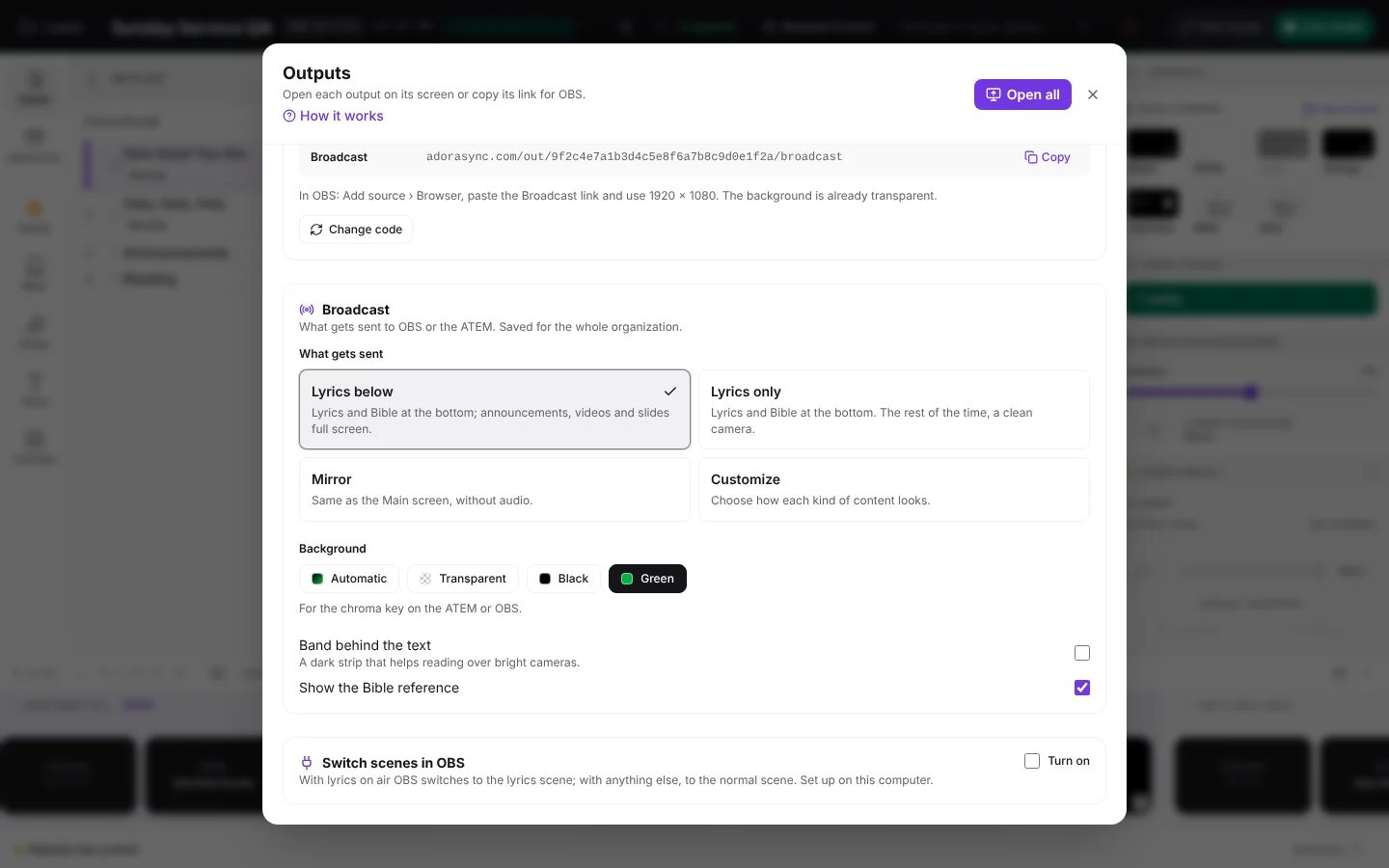
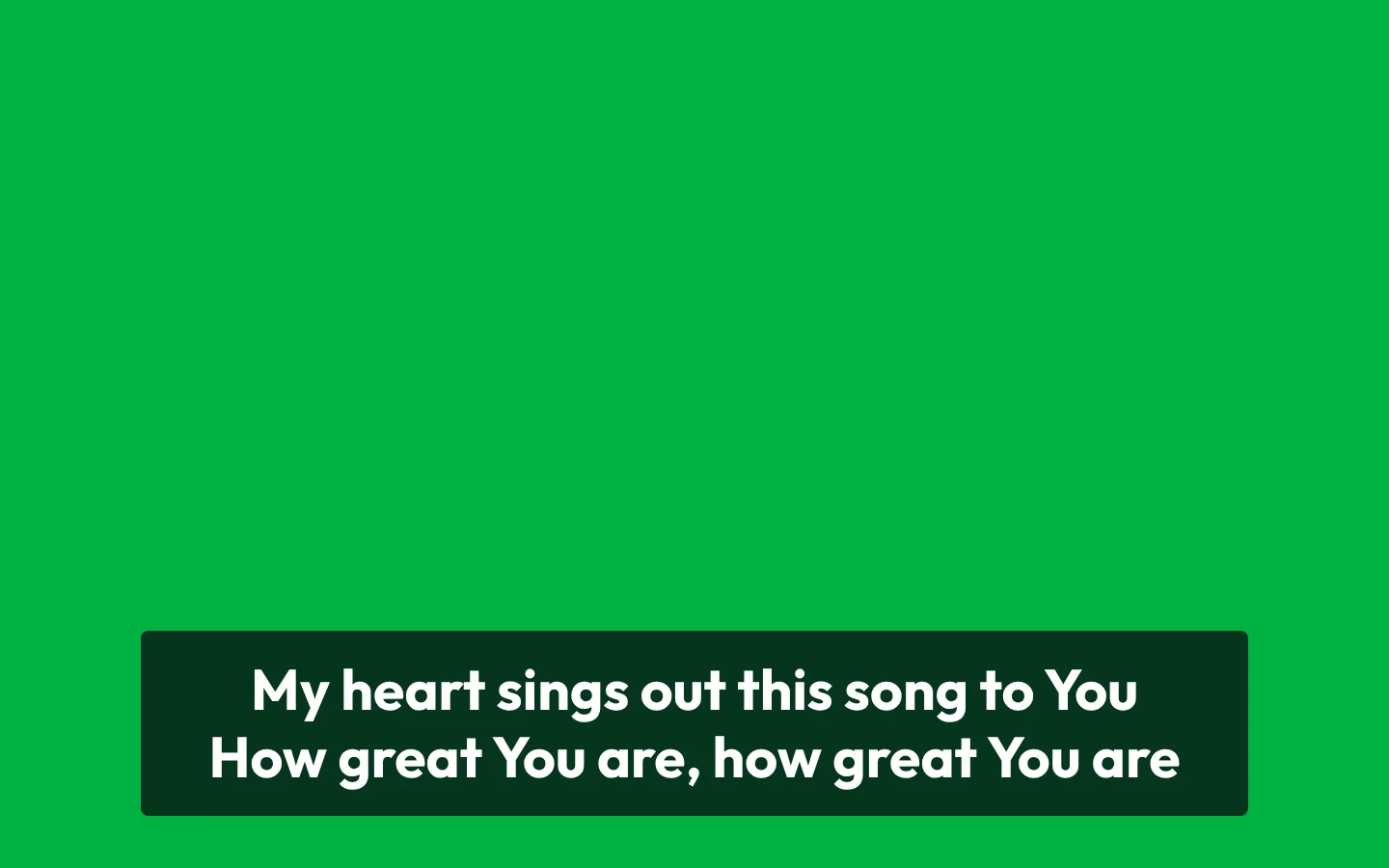
Tip:If your cameras have light backgrounds (white walls, lots of light), turn on Band behind the text: a semi-transparent dark band that makes the lyric readable over any image.
What to send at each moment
Not everything projected in the sanctuary makes sense on the livestream. That's why the output has ready-made modes:
- Lyrics below: songs and Bible in the bottom band; announcements and videos full screen. It's the recommended starting point.
- Lyrics only: songs and Bible at the bottom; the rest of the time the camera stays clean.
- Mirror: the same as the sanctuary, for those who prefer to stream the screen as it is.
- Customize: you decide for each type of content whether it goes at the bottom, full screen or isn't sent.
The choice is saved for the whole church, so the next technician finds everything the same.
Common mistakes (and how to avoid them)
- Duplicated audio or echo. If the lyrics page plays the sound of the videos, the livestream hears it twice. The broadcast output is always muted; the audio comes from the sound desk.
- Lyric too large. A full-screen verse covers the camera. In the lower third the size adjusts on its own to fit in the band.
- Changing the link every Sunday. Use the fixed link: it shows whichever program is live and waits if it hasn't started yet.
- Green that doesn't key well. If the chroma key leaves edges, try the black background with a luma key or the transparent one in OBS.
Quick checklist for Sunday
- Open the live program and tap Outputs.
- Check that Main screen, Stage display and Broadcast say Connected.
- Advance a test slide and look at the OBS or switcher preview.
- Confirm that the livestream audio comes from the sound desk and not from the lyrics.
Frequently asked questions
Do I need separate software to put lyrics in OBS?
No. The broadcast output is a web page that OBS shows as a browser source, with a transparent background.
Where do I set the green background?
In the live panel: Outputs › Broadcast › Background › Green. Also in Settings › Display › Outputs.
Does it work with an ATEM Mini?
Yes. Send the broadcast output over HDMI to a free input and use a luma key with a black background, or a chroma key with a green background.
Does the livestream carry the audio of the videos?
No. It's always muted so it doesn't duplicate the sound that already comes from the sound desk.
How to start today
Create your free AdoraSync account and build the program for your next service in minutes.
The step-by-step guide is in How to livestream your service with lyrics in OBS or an ATEM.