Multiple organizations
How to create and manage multiple organizations
One account can belong to several organizations: your church, a ministry, a band or the church where you also serve. Each organization has its own library, programs, team and its own plan.
Know which organization you are configuring
Everything in Settings (details, members, integrations, subscription…) belongs to a single organization. Above the Settings menu, the You're configuring card shows which one it is, with its logo and brand color. On a phone it appears in the top bar.
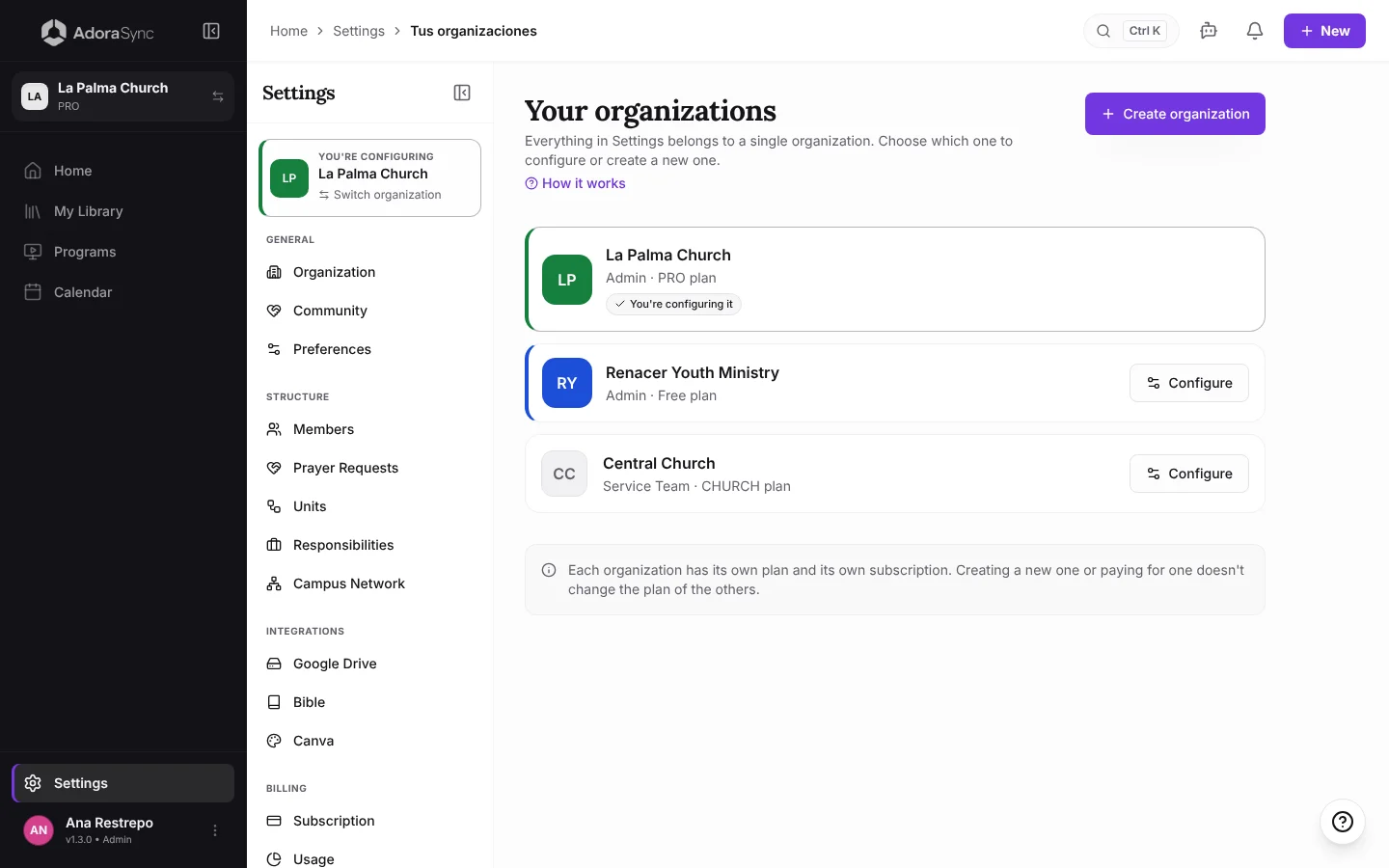
If you belong to several organizations, the card says Change: tap it to open Your organizations, where you see all of them, your role and each one's plan. With Configure you switch to another one and open its settings. You can also switch from the organization name in the side menu.
Create another organization
- Go to Settings › Organization and, at the bottom of the page, tap Create another organization. It is also available when you tap your organization's name in the side menu, and in Your organizations if you already have several.
- Complete the same steps as at the beginning: name and denomination, language, type, location and Google Drive.
- When you finish you are inside the new organization, as its Admin. If you change your mind, Cancel takes you back to Settings.
Tip:The new organization starts empty and on the Free plan. Songs and programs from your other organizations are not copied.
One plan per organization
The subscription is paid per organization. Paying for the PRO plan of one doesn't change the plan of the others, and canceling one doesn't affect the rest either. To pay for or review an organization's plan, configure that organization and go to Billing › Subscription.
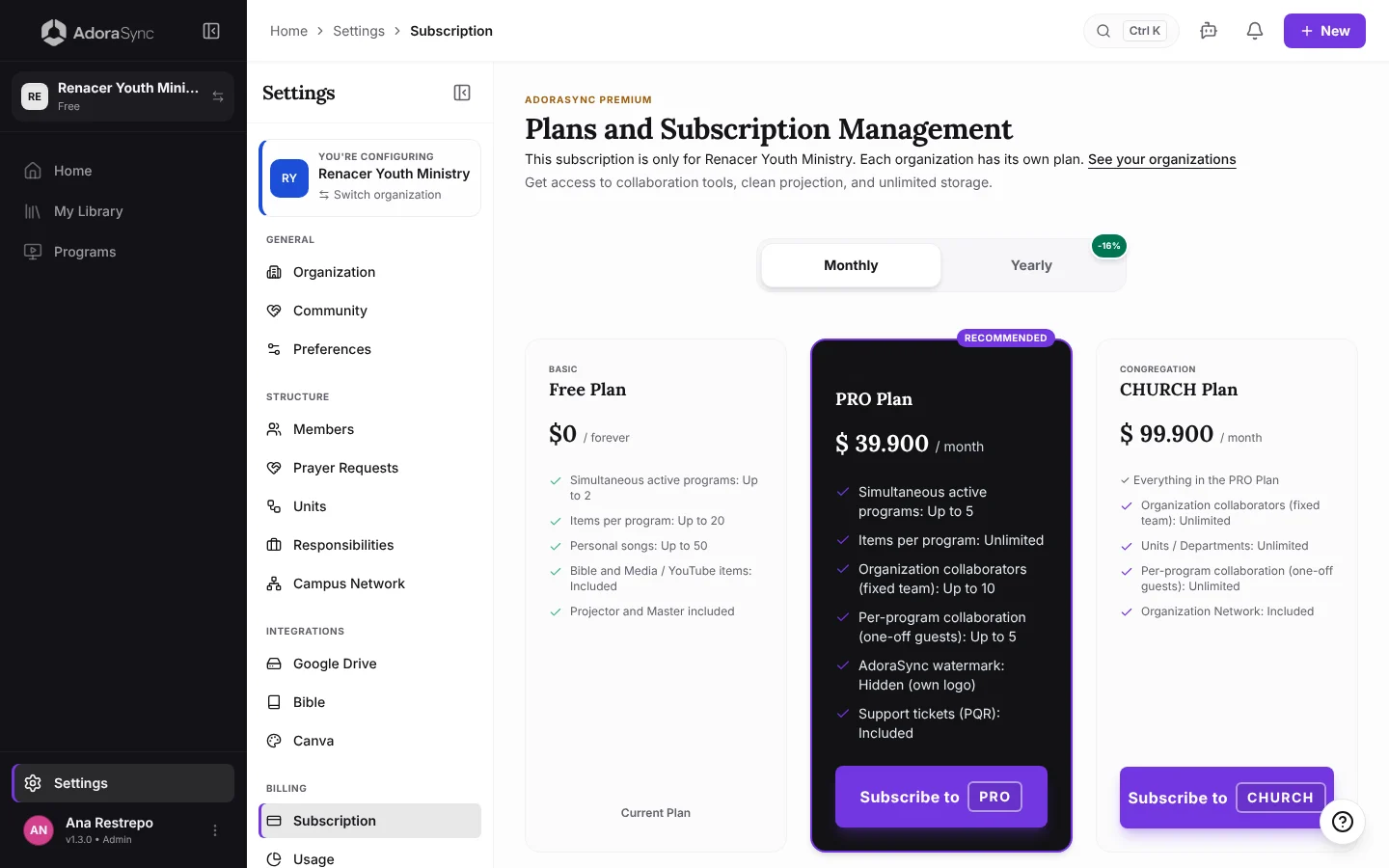
The 14-day free trial can be used only once per person, in the organization you choose.