Your first service
How to receive announcements with a link
With the link to receive announcements, anyone (a ministry, a leader or someone in the congregation) can send you their announcement without an account: they type it from scratch or upload the flyer and AI fills in the details. Nothing is published until someone on your team approves it. It is included in the Pro and Church plans.
Create and share the link
- Go to Settings › Announcement collection.
- Tap Create link. Your organization has a single link and it doesn't expire.
- Copy it or open its QR Code to share it on WhatsApp, social media or on a slide.
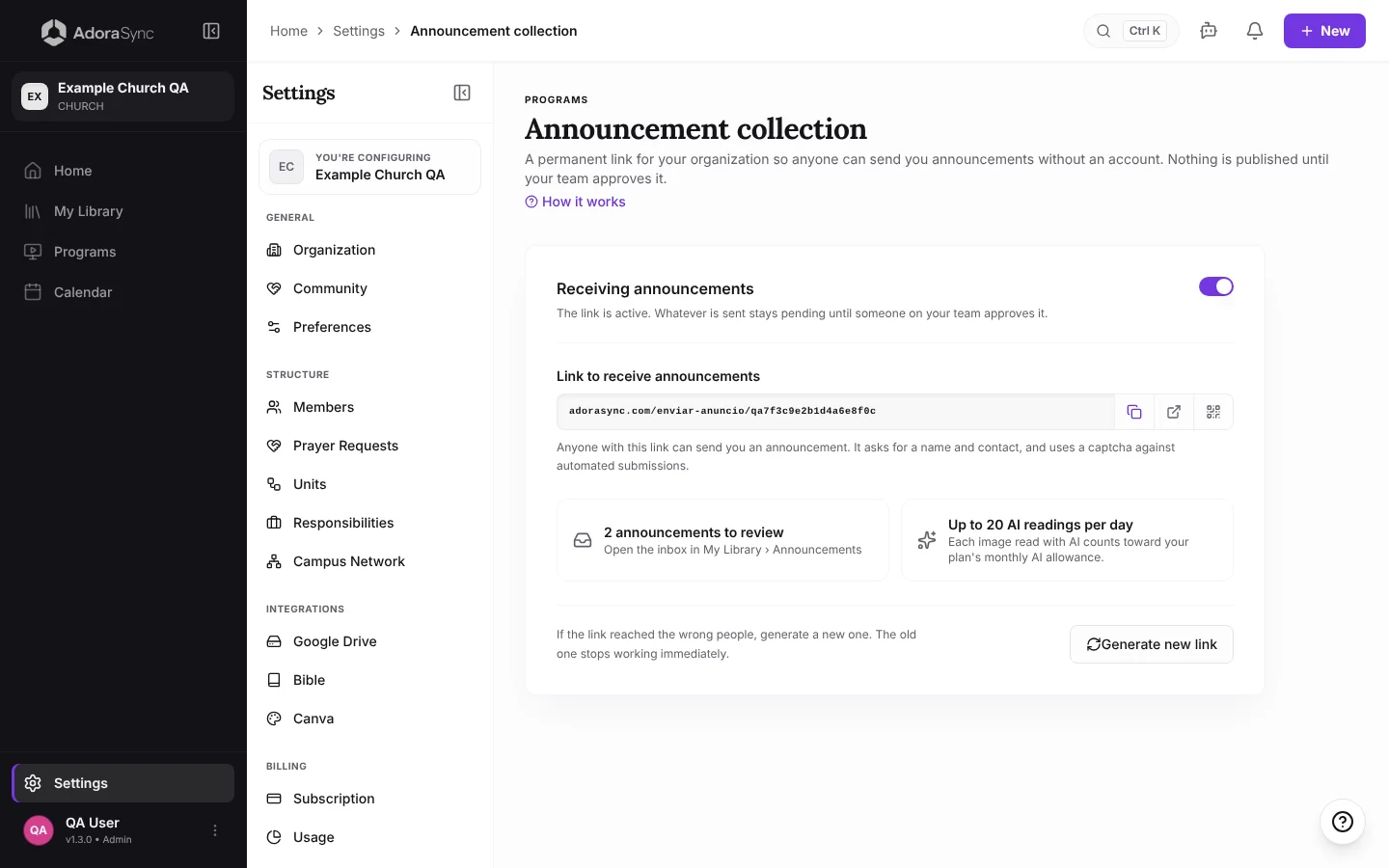
Only Admin, Co-Admin and Media Technician can create, pause or change it.
What people see when they open the link
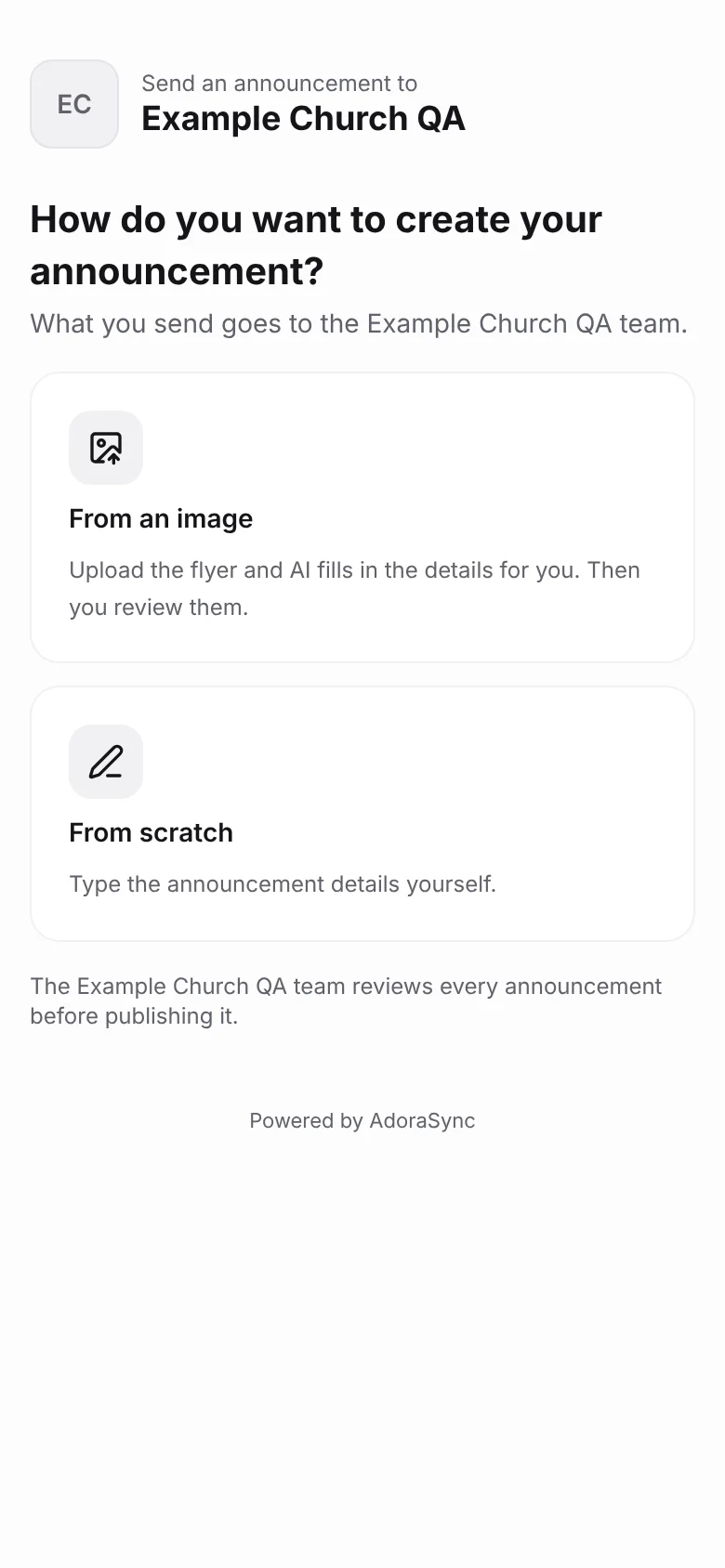
The page shows your church's name and logo and two paths:
- From an image: they upload the flyer and, if they want, paste the message that goes with it. AI reads the date, time, place and contact and fills in the form. The person reviews and corrects it before sending.
- From scratch: they type the title, description, date, place and, if they want, more information in blocks that are shown as slides.
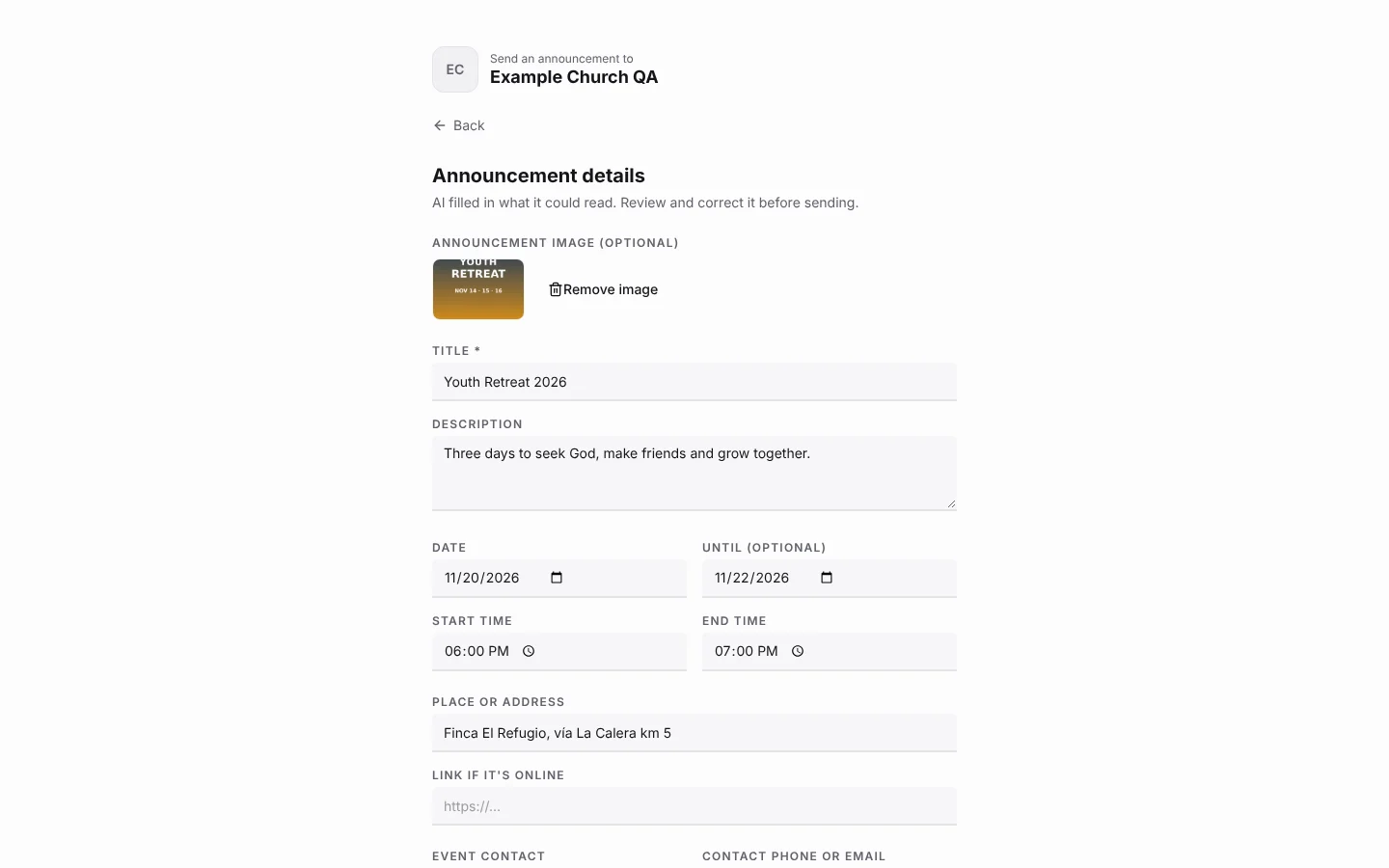
At the end they leave their name and their WhatsApp or email, in case your team needs to ask them something. Only your team sees those details.
Review and approve
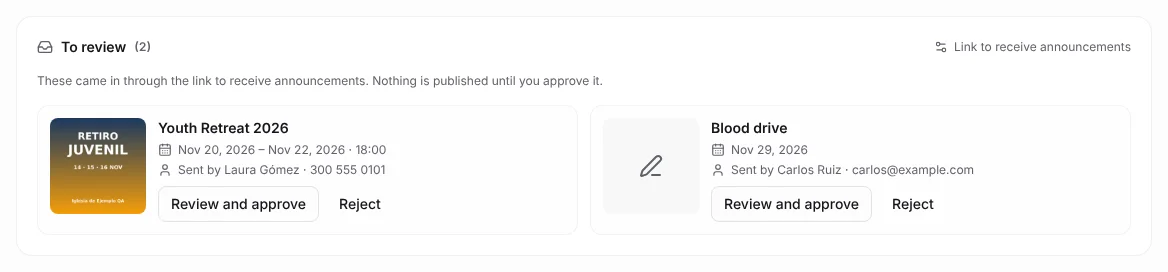
Each submission arrives in My Library › Announcements, in the To review box, and you get a notice in the notifications bell.
- Tap Review and approve: the announcement editor opens with what they sent, image included.
- Adjust whatever you want and save. When you save, the announcement is approved and goes to your library like any other.
- If it's not useful, tap Reject and it leaves the inbox without being published.
Pause, change the link and limits
- Pause: turn off the Receiving announcements switch. Anyone who opens the link will see that announcements aren't being received right now.
- Generate new link: if the link reached the wrong people, the old one stops working immediately. Announcements already received stay.
- A captcha stops automated submissions and each person can only send a few announcements in a row.
- Each image read with AI counts toward your plan's monthly AI allowance, with a daily cap of readings for the link. If the cap is reached, the person can continue without AI.
- Storage for posters and images: images are saved directly to your church's Google Drive. If your organization doesn't have Google Drive connected in Settings › Integrations, the public link will display the notice "The organization's cloud storage is not connected" and the "From an image" option will be disabled. Connect Google Drive so anyone can send posters and use AI automatic reading.