Congregation
How to create a digital flyer for your guests
The digital flyer is what your ministry hands out at the door, but on the phone. When guests scan the program's QR code, besides following the lyrics they tap About us and see who you are, who performs that day, the guest speaker, how to support you and your social media. It works for concerts, tours, outreach days or any program. It's included in every plan.
What guests see
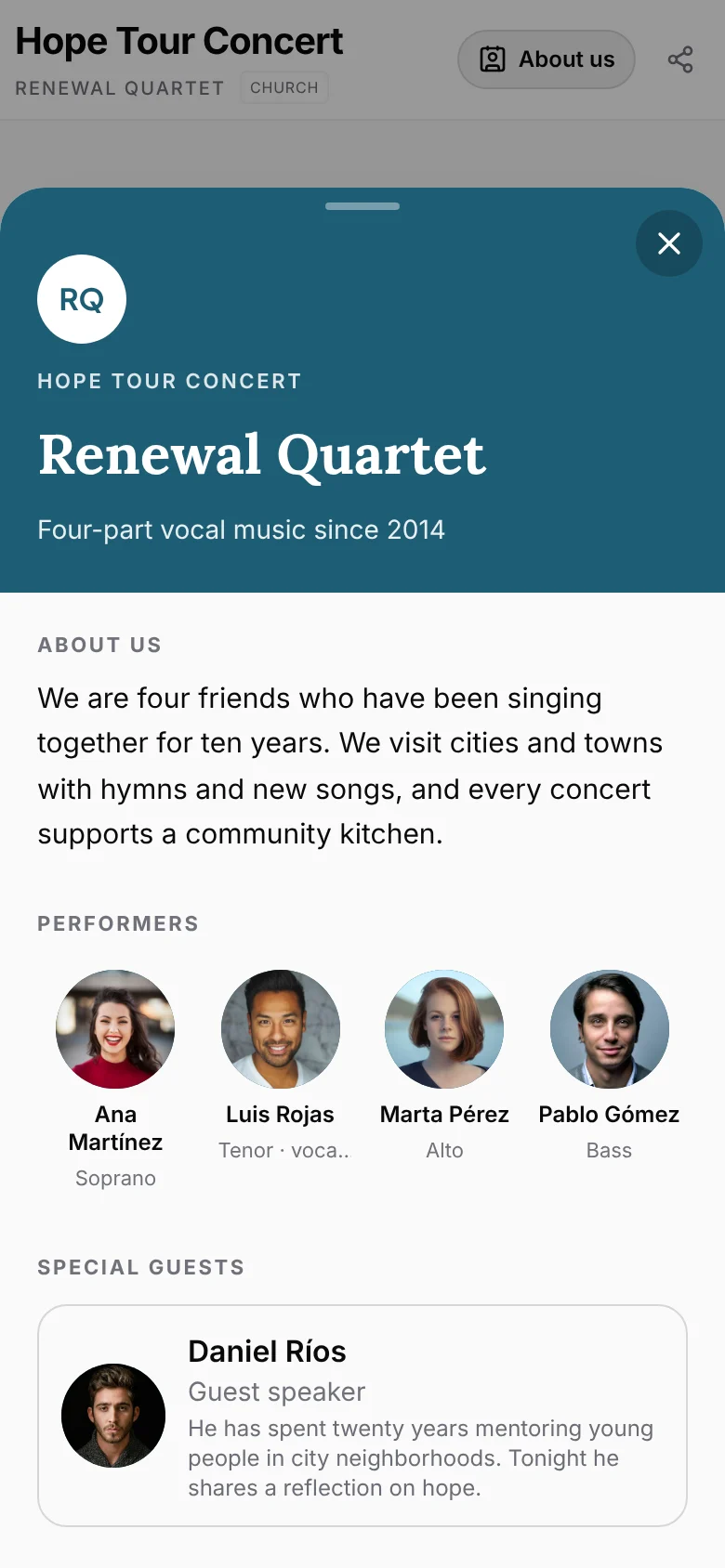
The guest view shows an About us button next to the program name. It opens on top of the lyrics, so nobody misses what's on screen.
- Cover in your organization's color, with the logo, the name and a short line.
- About us: a few lines about the ministry.
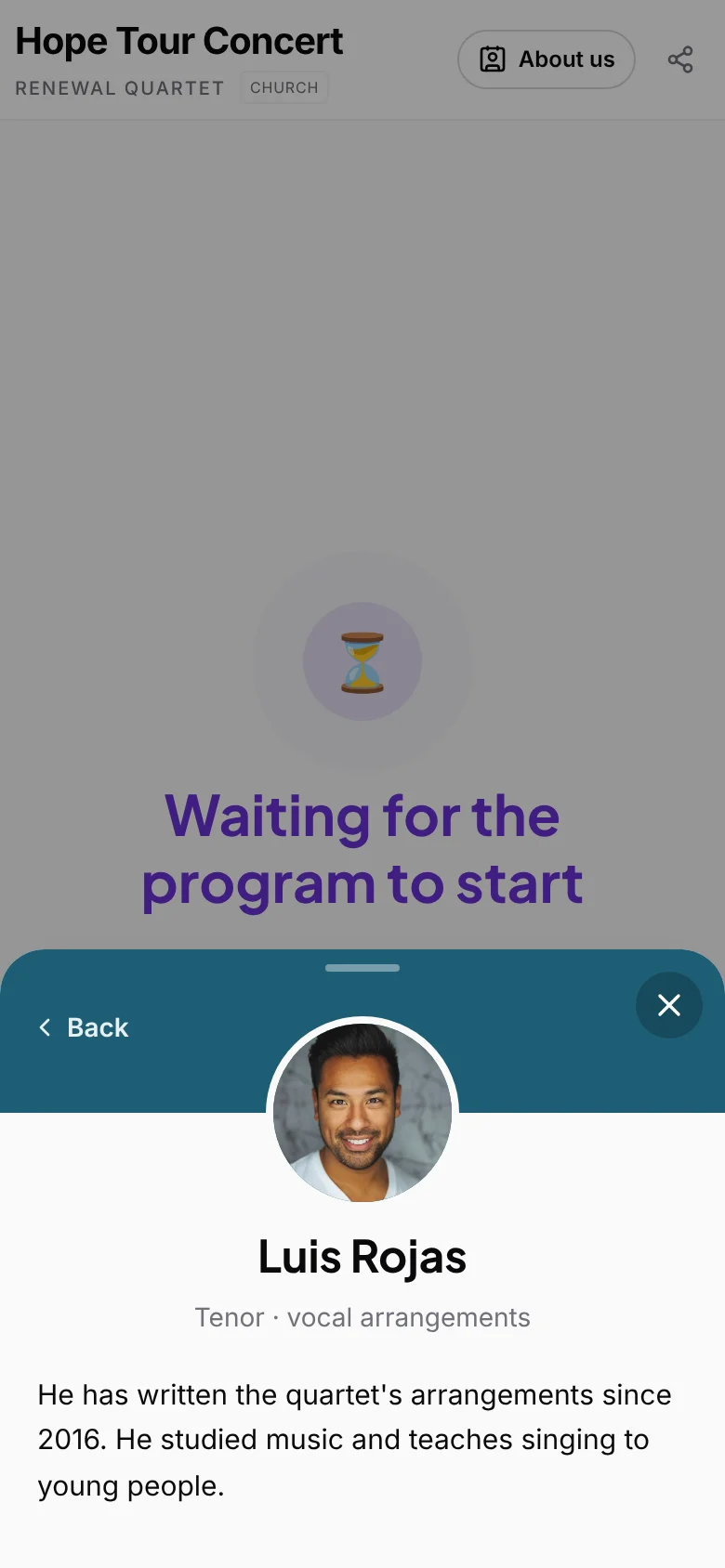
- Performers: photo, name and role of the people performing. Tapping someone opens their bio and link.
- Special guests: the speaker or musicians who are only in that program.
- Support the ministry, your social media and a link to your public page.
Add your performers
Performers are the people who perform with your organization: singers, musicians, volunteers. They don't need an account and they aren't Collaborators: they only appear in the flyer.
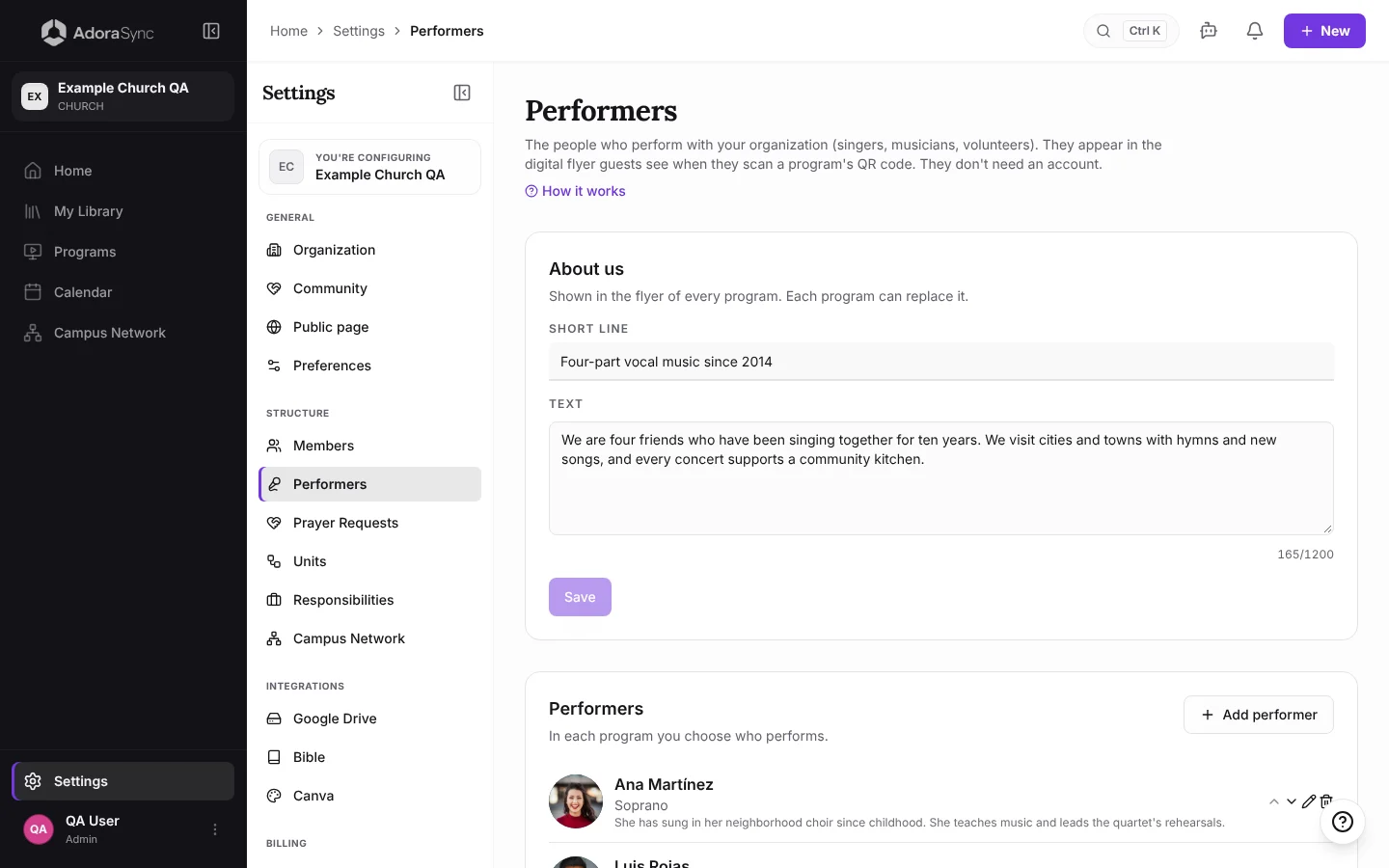
- Go to Settings › Structure › Performers.
- In About us, write a Short line and the ministry's Text, then tap Save. It's reused in every flyer.
- Tap Add performer: name, role, a short bio and, if you like, a link (their social profile).
- Tap Add photo to upload their photo. It's saved in your organization's Google Drive.
- Sort the list with the arrows: that's the order in the flyer.
Build the flyer for a program
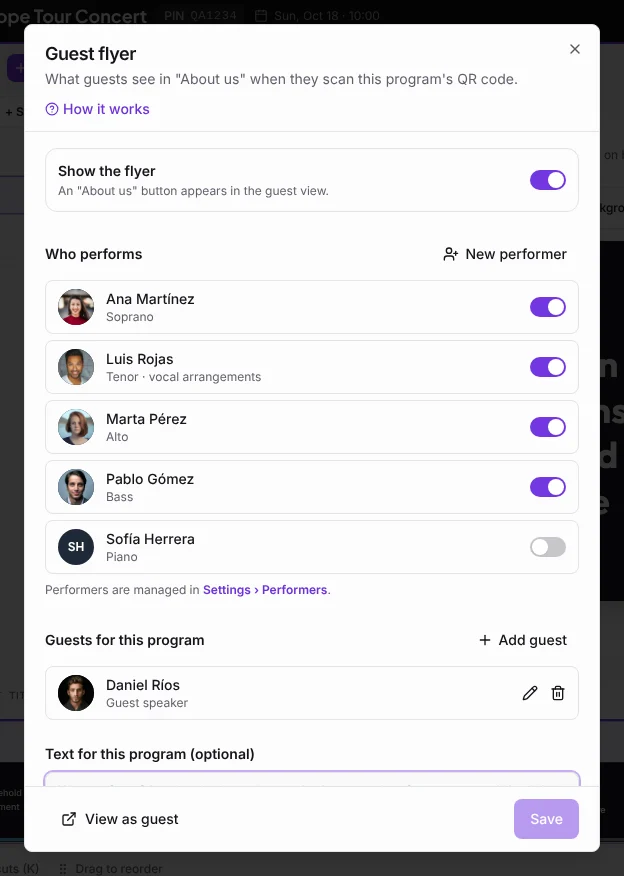
- Open the program and, in Share, tap Guest flyer. On a phone it's in the program's options menu.
- Turn on Show the flyer.
- In Who performs, turn on the performers who are there that day. Not everyone always goes.
- In Guests for this program, tap Add guest for the speaker or a supporting musician. They only appear in this program.
- If this program needs a different text, write it in Text for this program. Left empty, "About us" is used.
- Tap Save and then View as guest to check it.
Tip:The Support the ministry button uses the donations link from Settings › Organization. Without a link, it doesn't appear.
Note:Guests only see the flyer if the program is shared with them (the code and QR code in Share).