Start here
How to search your whole organization
The global search finds everything in your organization in one place: programs, songs, members, announcements, resources, collections, lists, units, Settings screens and help articles. From there you can also project a song in seconds.
Open the search
- On a computer: press Ctrl K (⌘ K on a Mac) on any screen, or click the magnifying glass in the top bar.
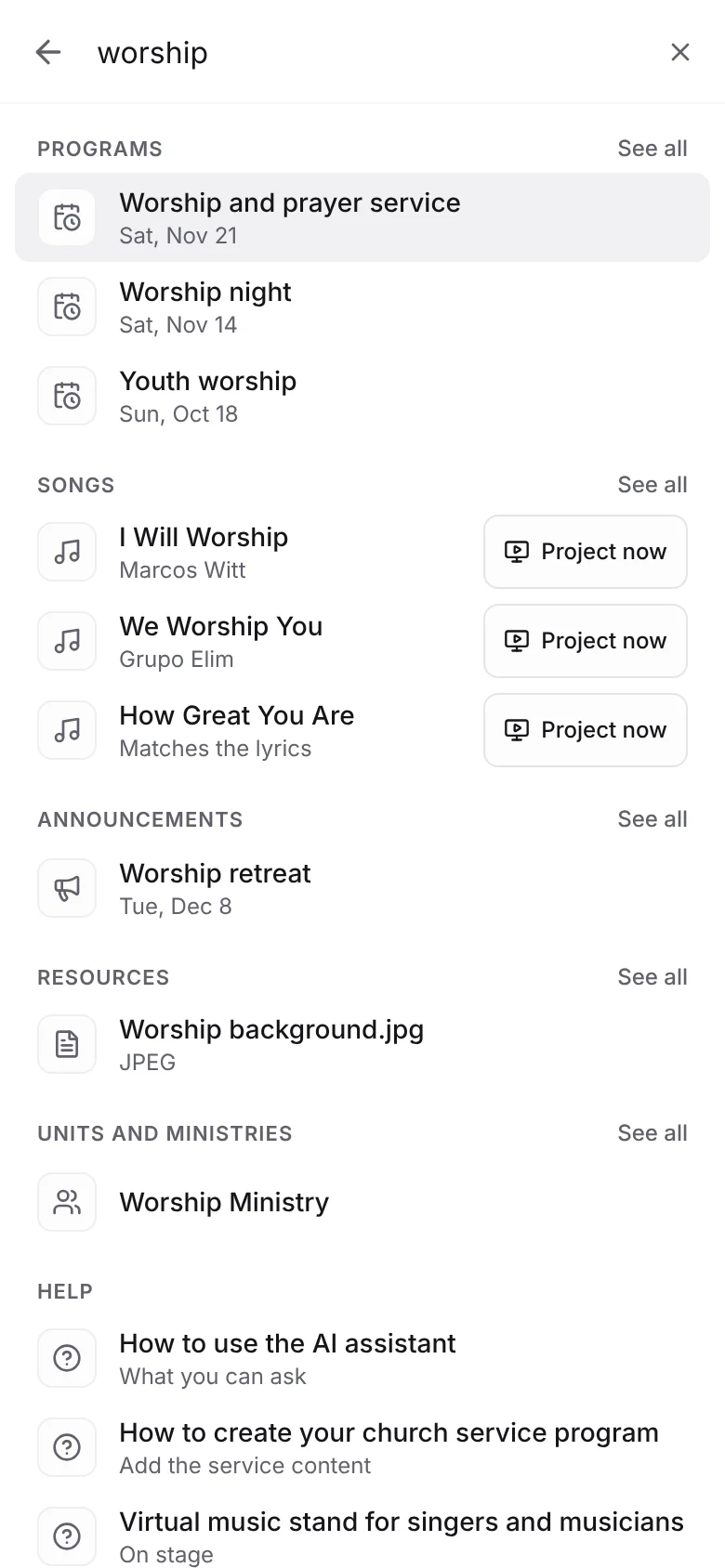
- On a phone: tap the magnifying glass in the top bar. The search takes up the whole screen and the keyboard is already open.
Before you type anything, the search shows what you last opened from it, the Quick program shortcut and the main screens.
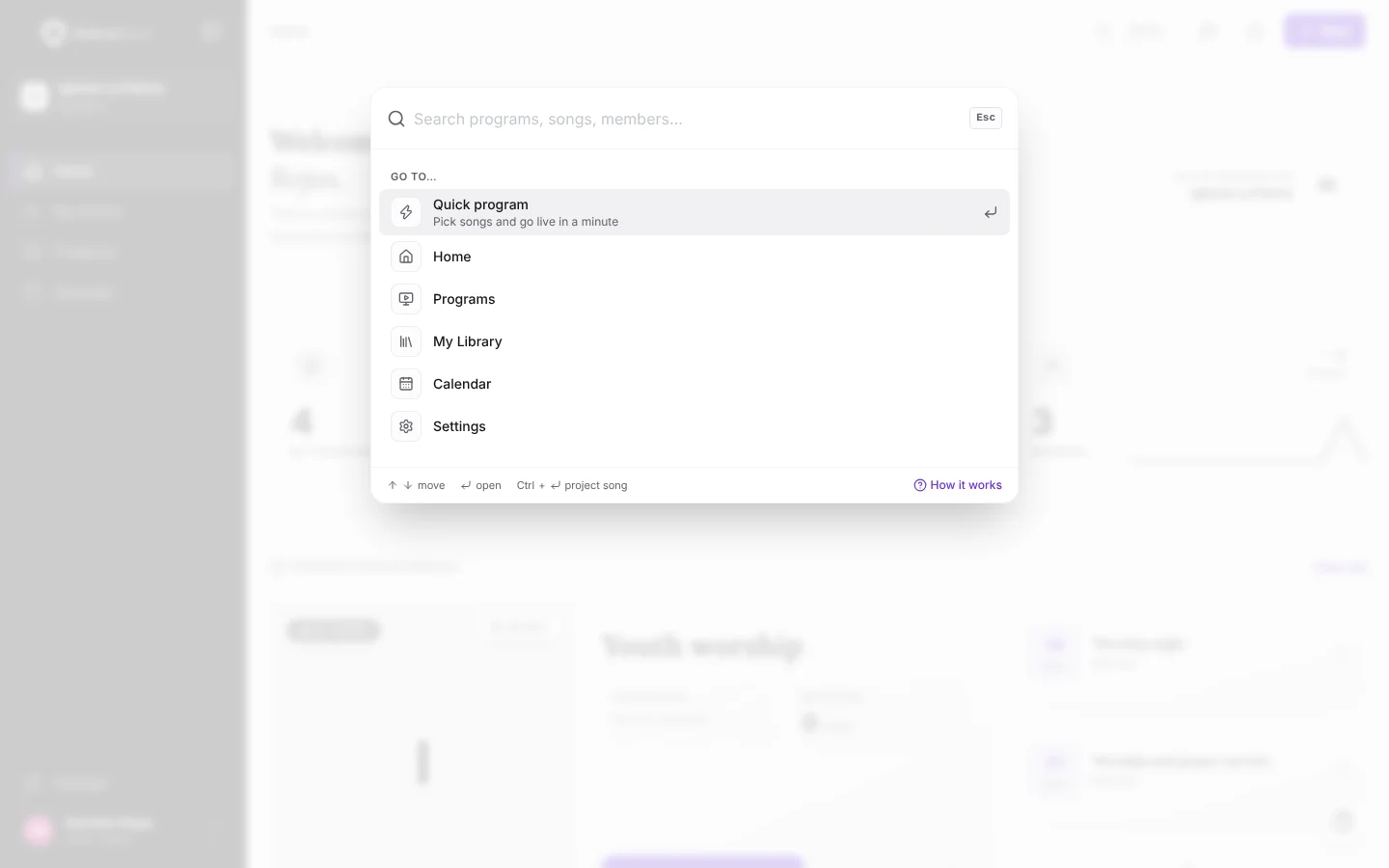
Tip:Inside a program editor and the Master, Ctrl K still opens their own song search to add songs to the program.
What it finds
Type at least two letters. Accents and capital letters don't matter. Results come grouped, with the closest matches first:
- Programs, with their date. For equal matches, the ones closest to today come first.
- Songs from your library and your collections, by title, artist or lyrics.
- Members, by name or email, and Units and ministries. Only the Admin and the Co-Admin see them.
- Announcements and Resources (files and links) from the library.
- Collections and Themed lists you are subscribed to.
- App screens: for example, billing takes you to Subscription and Usage.
- Help: the articles in this Help Center that cover the topic.
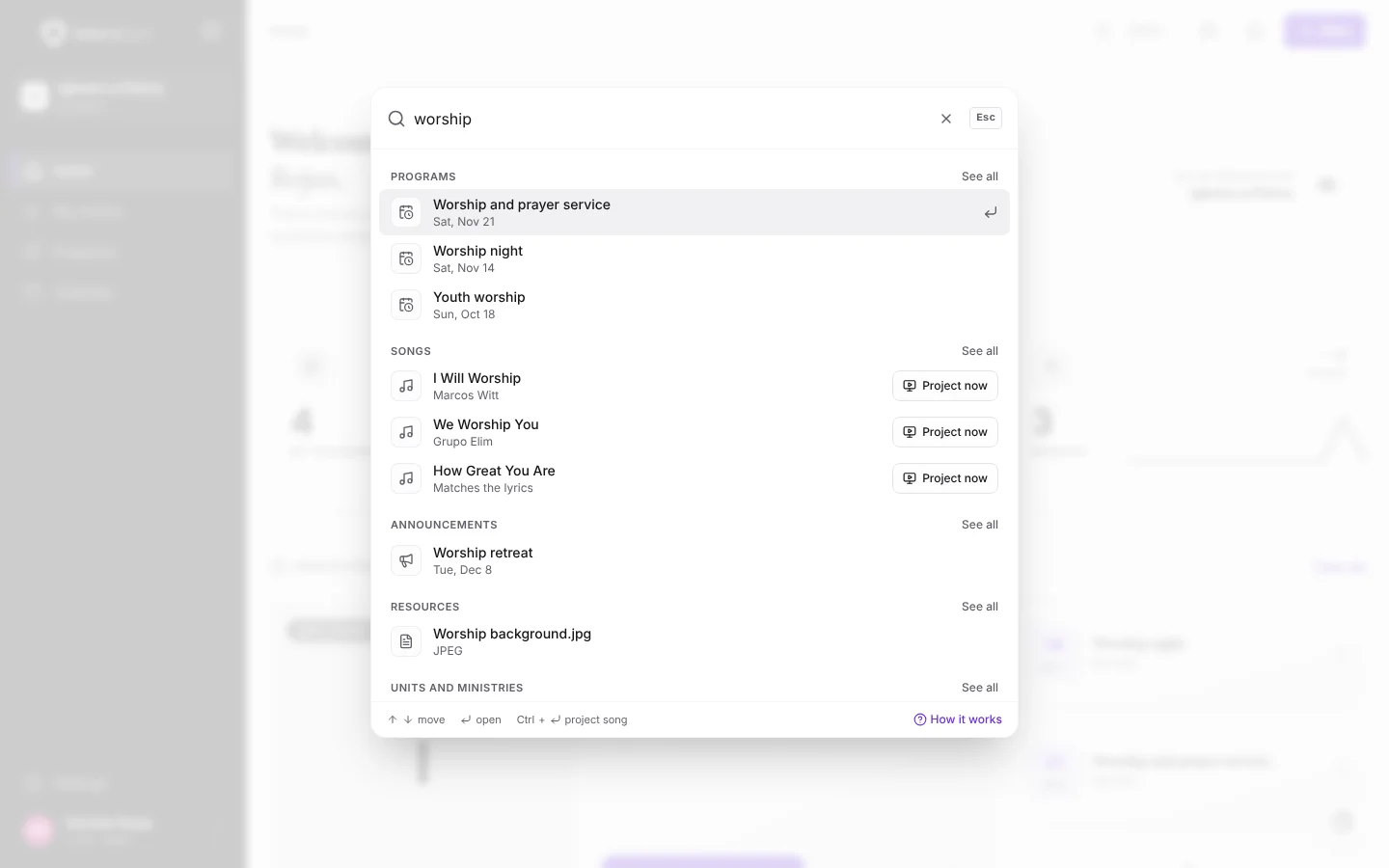
On a computer, move with the arrow keys and open with Enter. See all opens that group's screen already filtered by what you typed.
Project a song right away
Tapping a song opens its details. If you want to project it immediately, tap Project now on its row (or Ctrl Enter with the song highlighted). The quick program opens with that song already chosen: add others if you like and tap Quick Start to go on air.
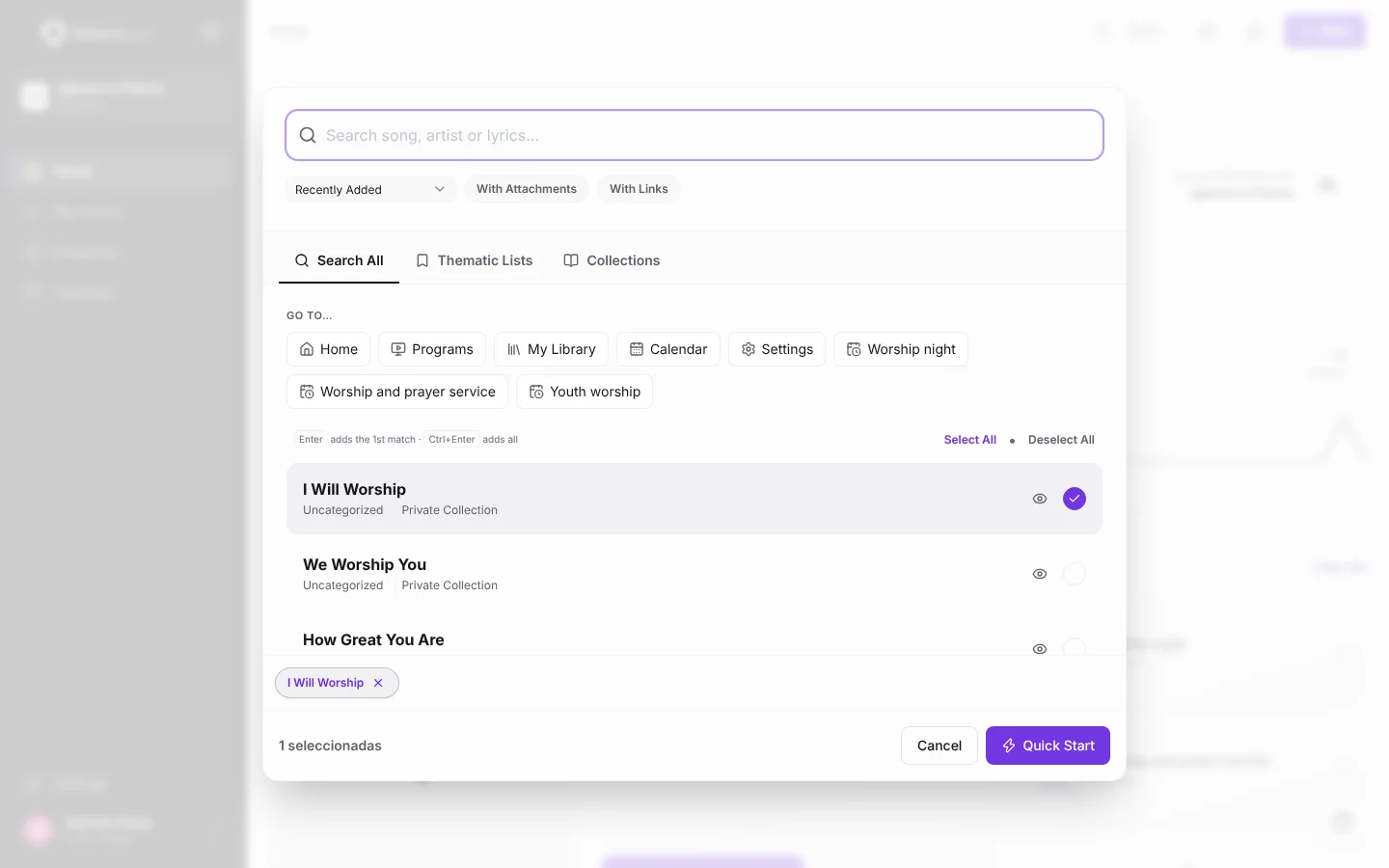
Note:Project now and Quick program appear for people who can create programs: Admin, Co-Admin and Media Technician.