Start here
How to set up your church's public page
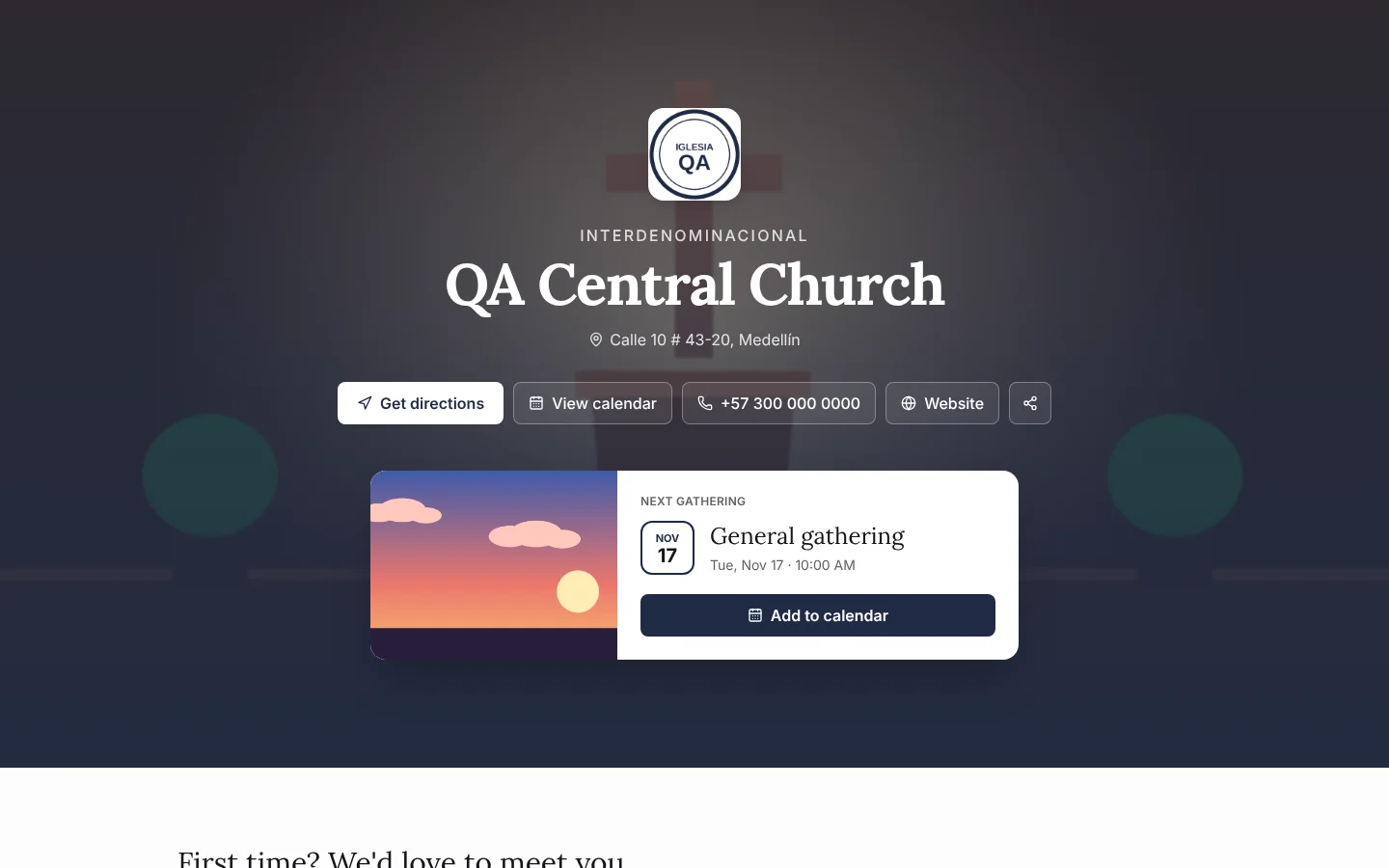
The public page is your church's page for visitors and members, at its own address (for example, /@your-church). It shows the next gathering, the announcements and a monthly calendar, with your church's logo and color. In Settings › General › Public page you choose the cover and which sections and buttons appear.
What visitors see
- Cover: the logo, the name, the address and the Get directions, View calendar, phone, website and share buttons.
- Next gathering: a card with the date, the time and the Add to calendar button.
- First time? We'd love to meet you: the forms for visitors and prayer requests.
- Announcements: your public announcements, with the full poster.
- Upcoming events, Calendar, Get connected (your links: giving, Wi-Fi, serving) and Past events.
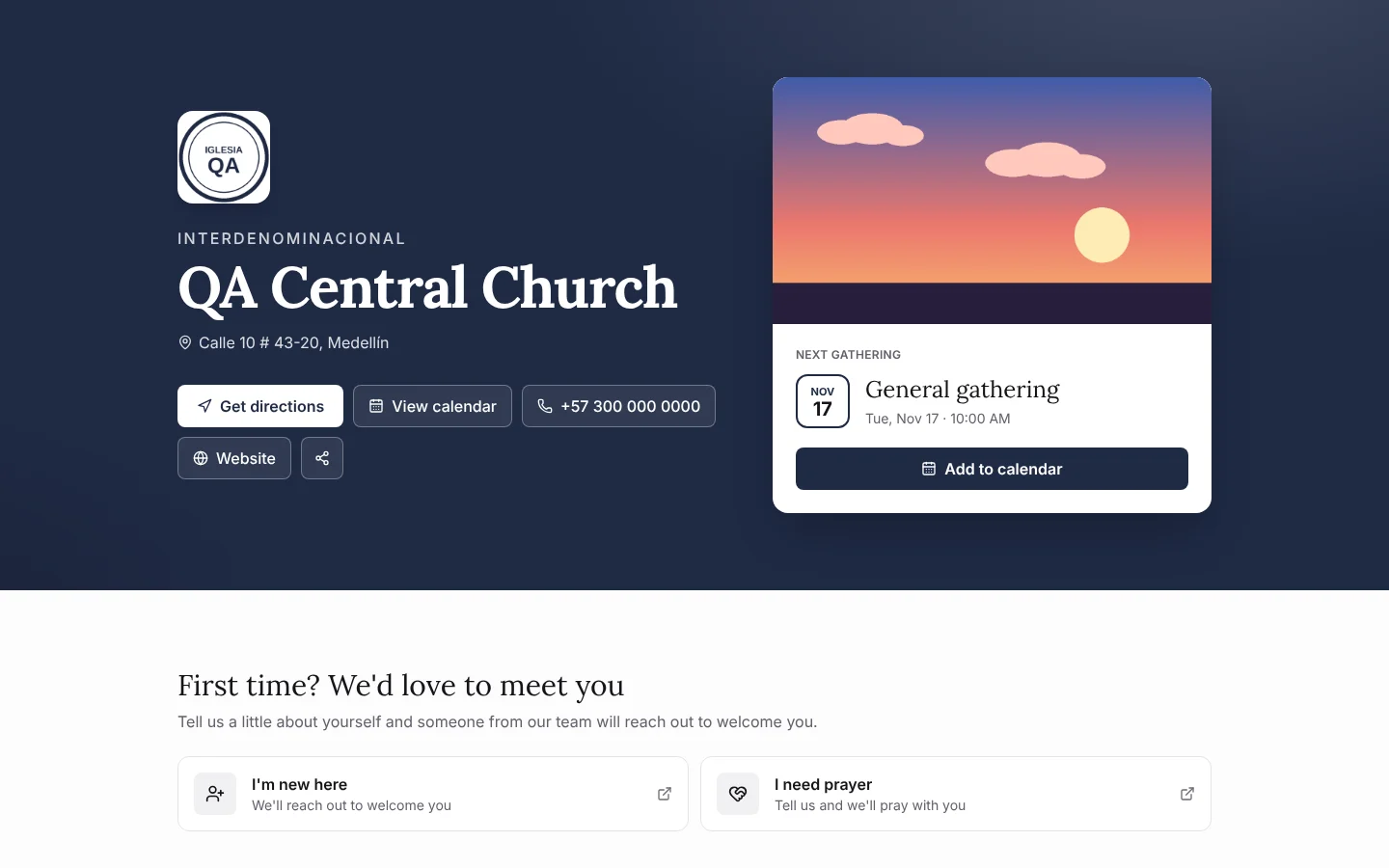
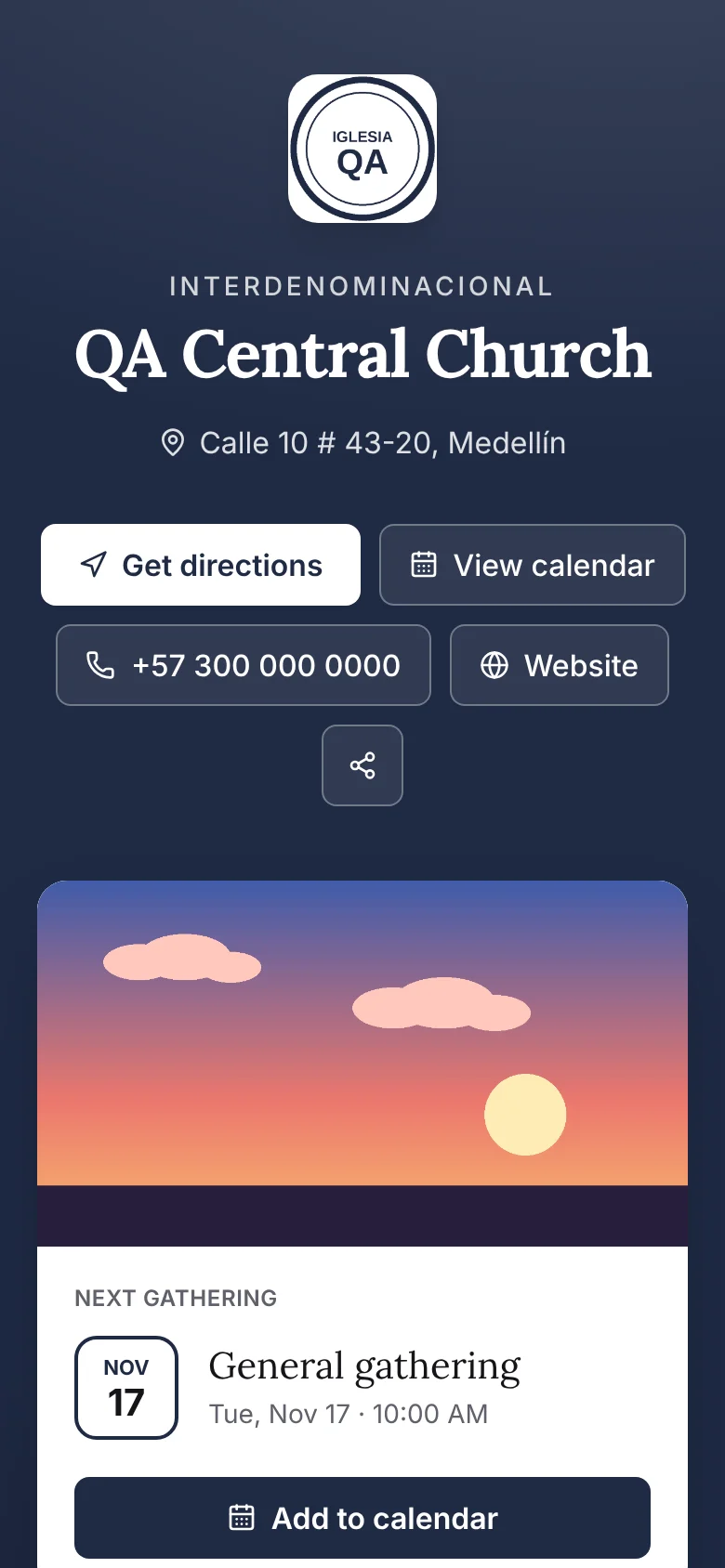
Only programs marked as public and public announcements appear. Times are shown in your church's time zone; visitors in another time zone also see their own time.
The monthly calendar
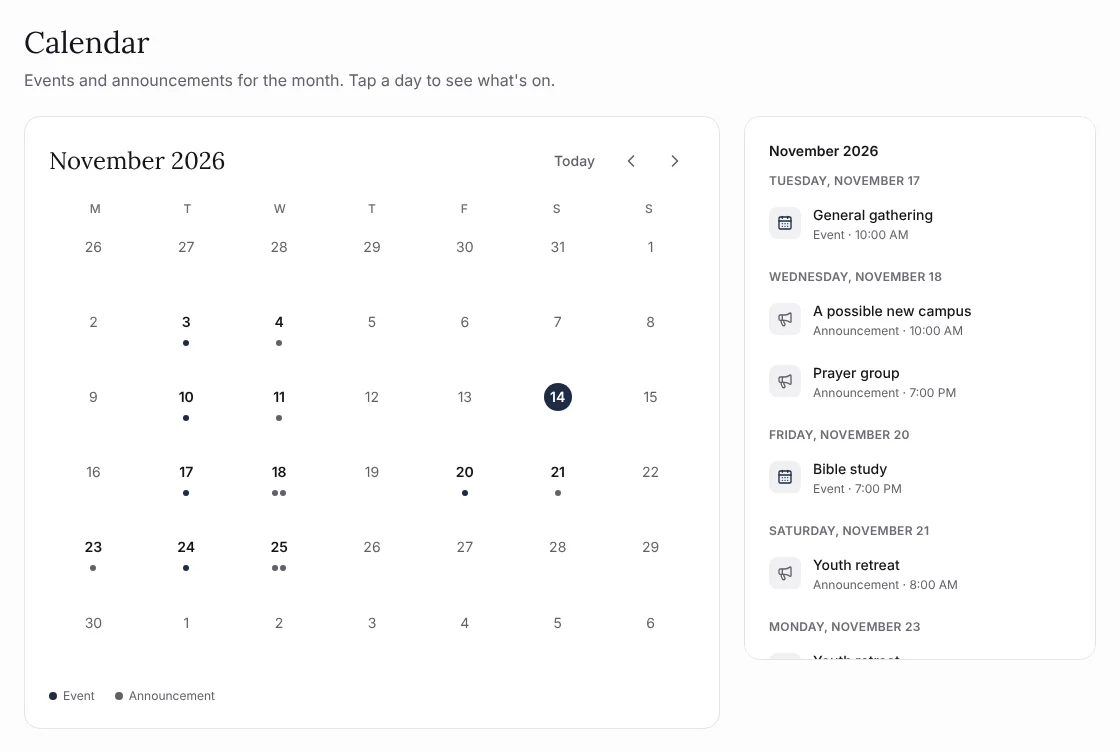
The calendar brings together the month's gatherings and announcements. Recurring announcements appear on each date while they are published.
- Tap a day to see only what's on that day.
- Tap a gathering or an announcement to open its details.
- Change month with the arrows, or go back with Today.
Choose the cover
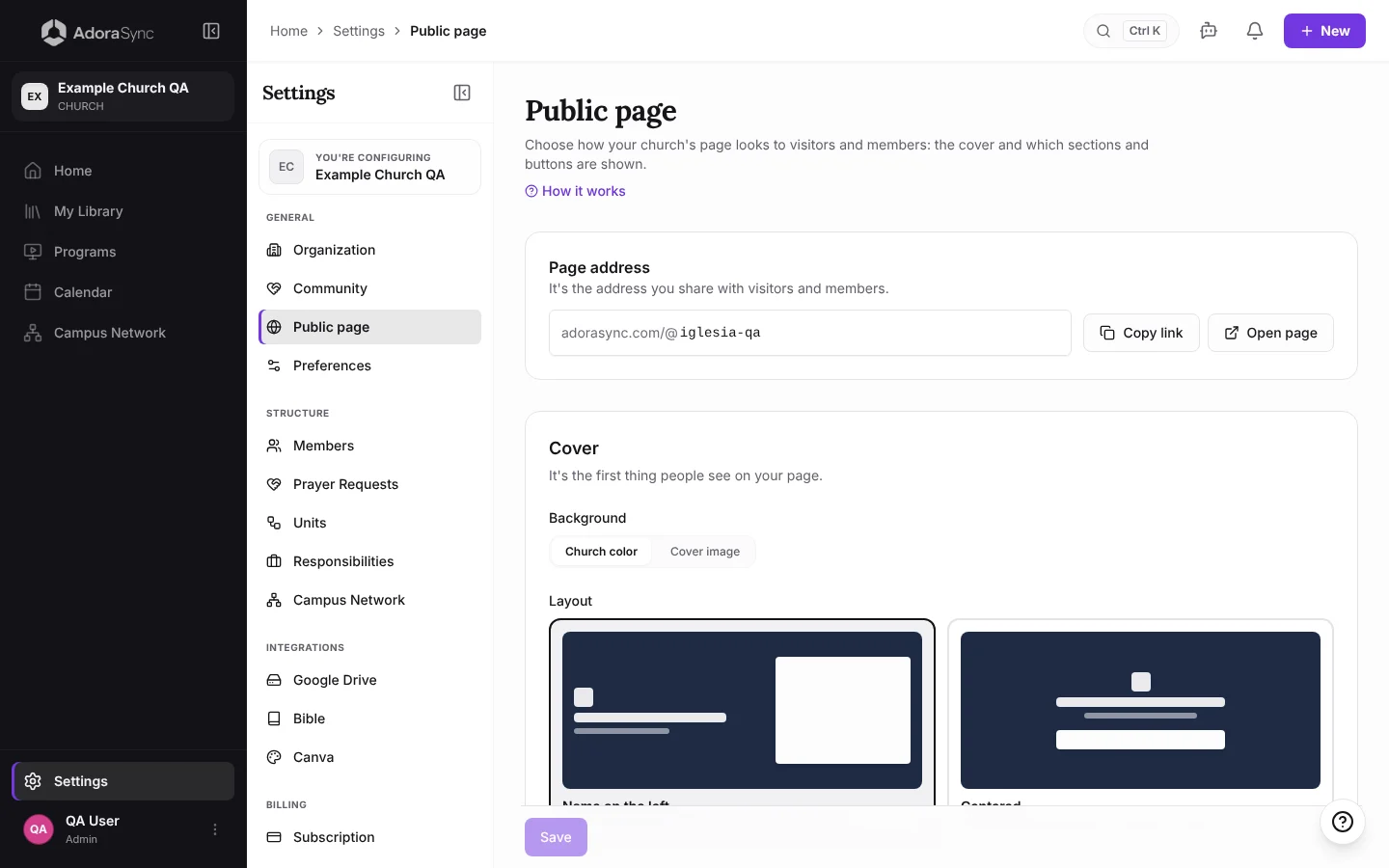
- Go to Settings › General › Public page. Only Admin and Co-Admin see it.
- Under Background, choose Church color or Cover image.
- If you chose an image, tap Upload image (it's saved in your church's Google Drive) or Choose from library.
- Under Layout, choose Name on the left (the next gathering goes beside it on a computer) or Centered.
- Tap Save.
Tip:Use a landscape photo at least 1600 px wide. Your church color goes on top so the text stays readable.
Show or hide sections and buttons
Sections and Cover buttons have a switch for each one. Turn off the ones you don't want to show and tap Save.
- Everything starts on: a church that never opens this screen shows the full page.
- A section with no content stays hidden even when it's on. For example, Past events only appears once there have been public programs.
- A button only appears if your organization has that information (phone, website or address).
Note:Name, logo, color, address and links are edited in Settings › Organization. Visitor and prayer forms, in Settings › Community.
Share the page
- Under Page address, tap Copy link to paste it on WhatsApp, social media or your Instagram bio, or Open page to see it as a visitor.
- To change the address, type it in Page address (lowercase letters, numbers and hyphens only) and tap Save. You can change it 2 times in 30 days, then once a month; the old link stops working.
- Anyone already on the page can share it with the share button on the cover.