Projection
How to livestream your service with lyrics in OBS or an ATEM
The Broadcast output puts lyrics and Bible verses over your camera image, at the bottom, without covering whoever is singing or preaching. It works with OBS (as a browser source) or with a video switcher such as an ATEM (over HDMI). You set it up once from the Outputs panel and it works every Sunday.
The three outputs
During the service you can send different content to each screen. Each output is a web page, so it opens on any computer with a browser:
| Output | What it shows | Where it is used |
|---|---|---|
| Main screen | What the congregation sees: lyrics, verses, announcements and full-screen videos. | The sanctuary projector or TV. |
| Stage display | The current lyric, the next one and the clock. | Stage monitor for whoever sings or preaches. |
| Broadcast | Lyrics and Bible in the lower third, with no audio. | OBS or the ATEM, over the camera. |
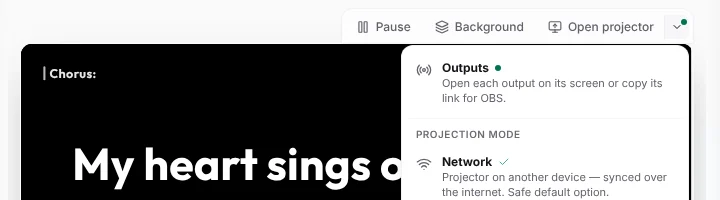
Open the program live and tap Outputs, in the bar above the preview. The green dot means at least one output is connected.
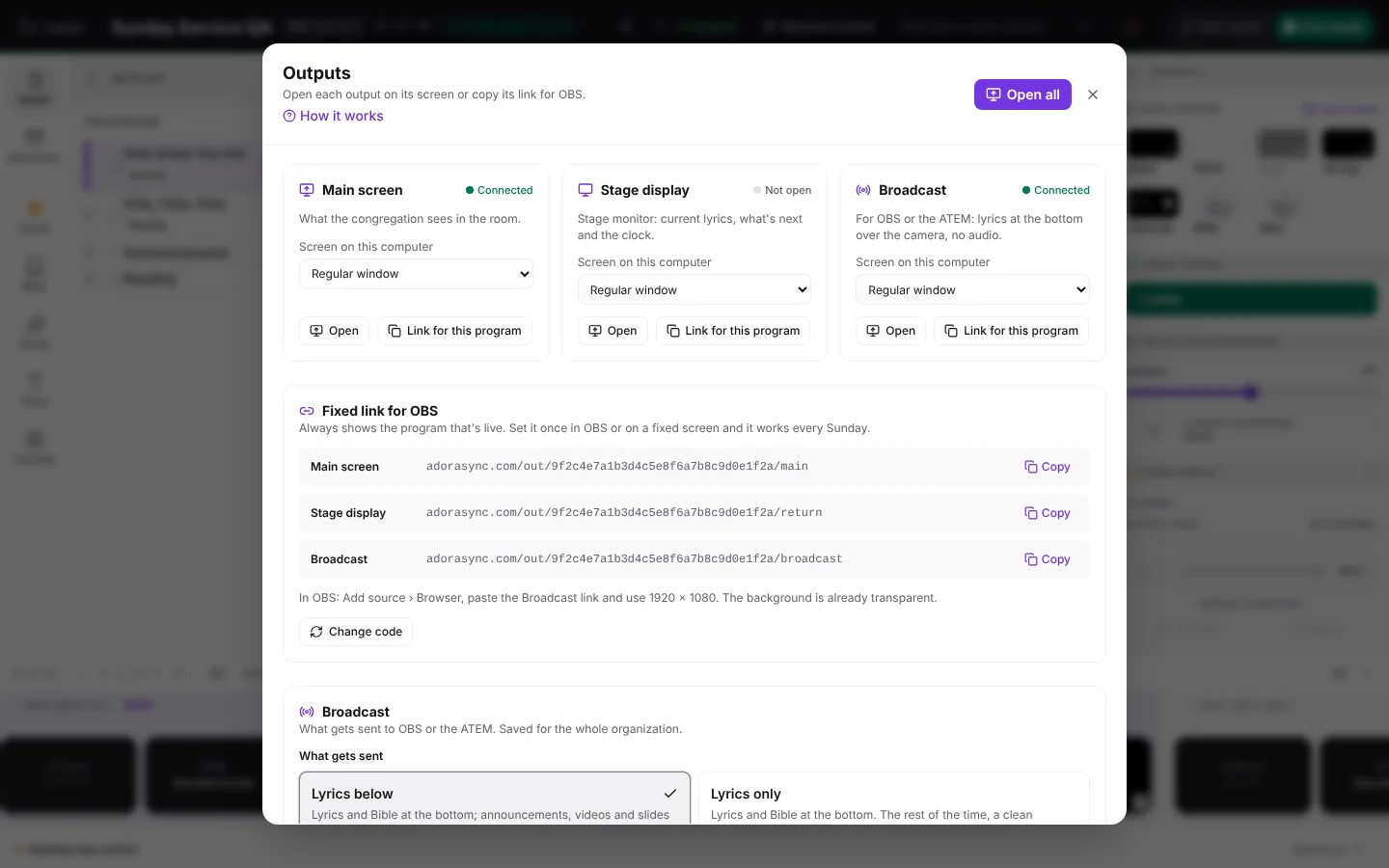
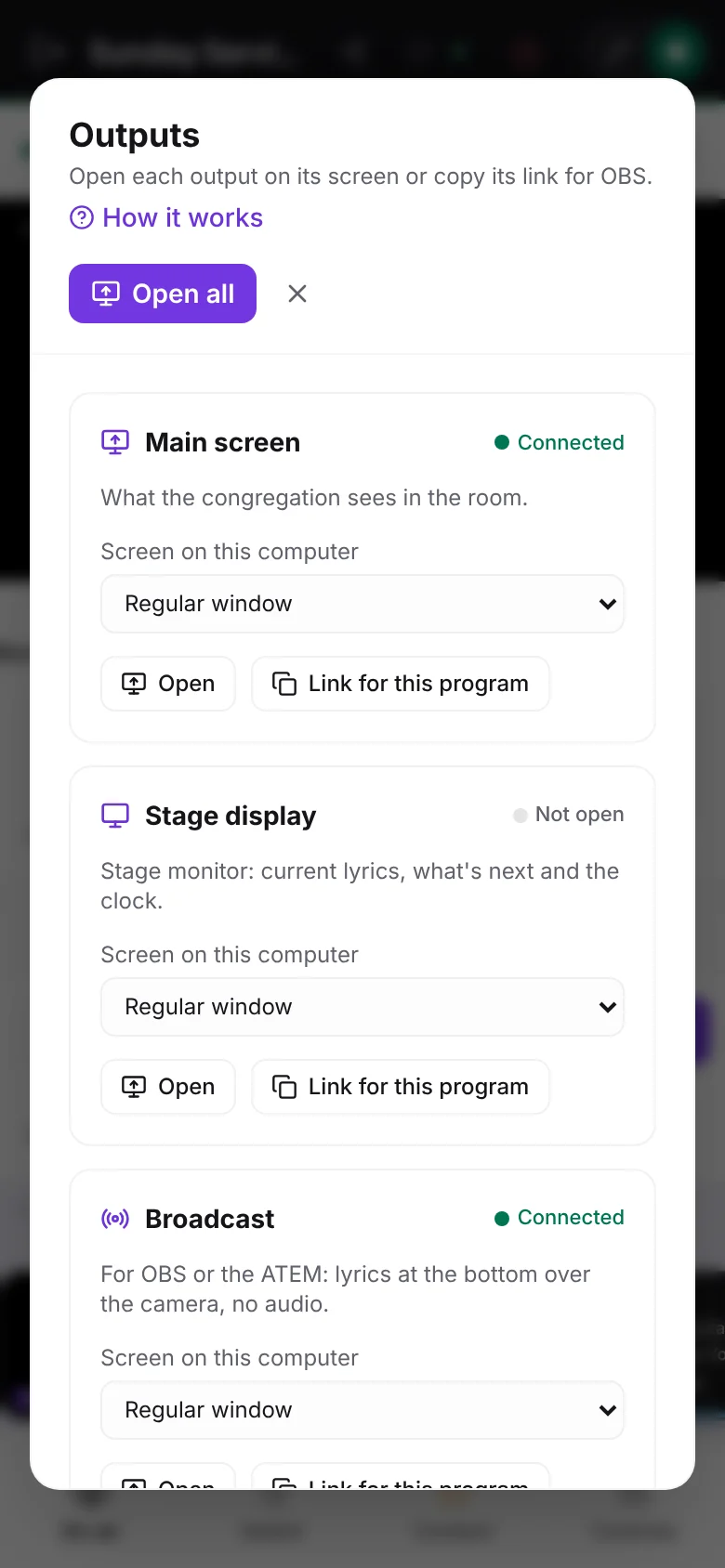
Tip:If your computer has several screens (for example, an adapter with two HDMI ports), choose the Screen on this computer on each card and tap Open all: each output opens on its own screen in full screen. The choice is remembered on that computer.
What gets sent to the broadcast
In the Outputs panel, the Broadcast section has four options under What gets sent:
- Lyrics below (recommended): lyrics and Bible in the lower third; announcements, videos and slides in full screen; nothing is sent while the hold screen is on.
- Lyrics only: lyrics and Bible at the bottom. The rest of the time the camera stays clean.
- Mirror: the same as the Main screen, without audio.
- Customize: for each type of content you choose whether it goes at the bottom, in full screen or is not sent.
The settings are saved for the whole church and reach any open outputs instantly. You also find them in Settings › Display › Outputs.
Note:The Broadcast output is available on the Pro and Church plans, and it never plays audio: the livestream's sound comes from your sound desk.
Green, black or transparent background
In the same section, Background defines what is behind the lyrics. Choose based on how you will key them over the camera:
| Background | When to use it |
|---|---|
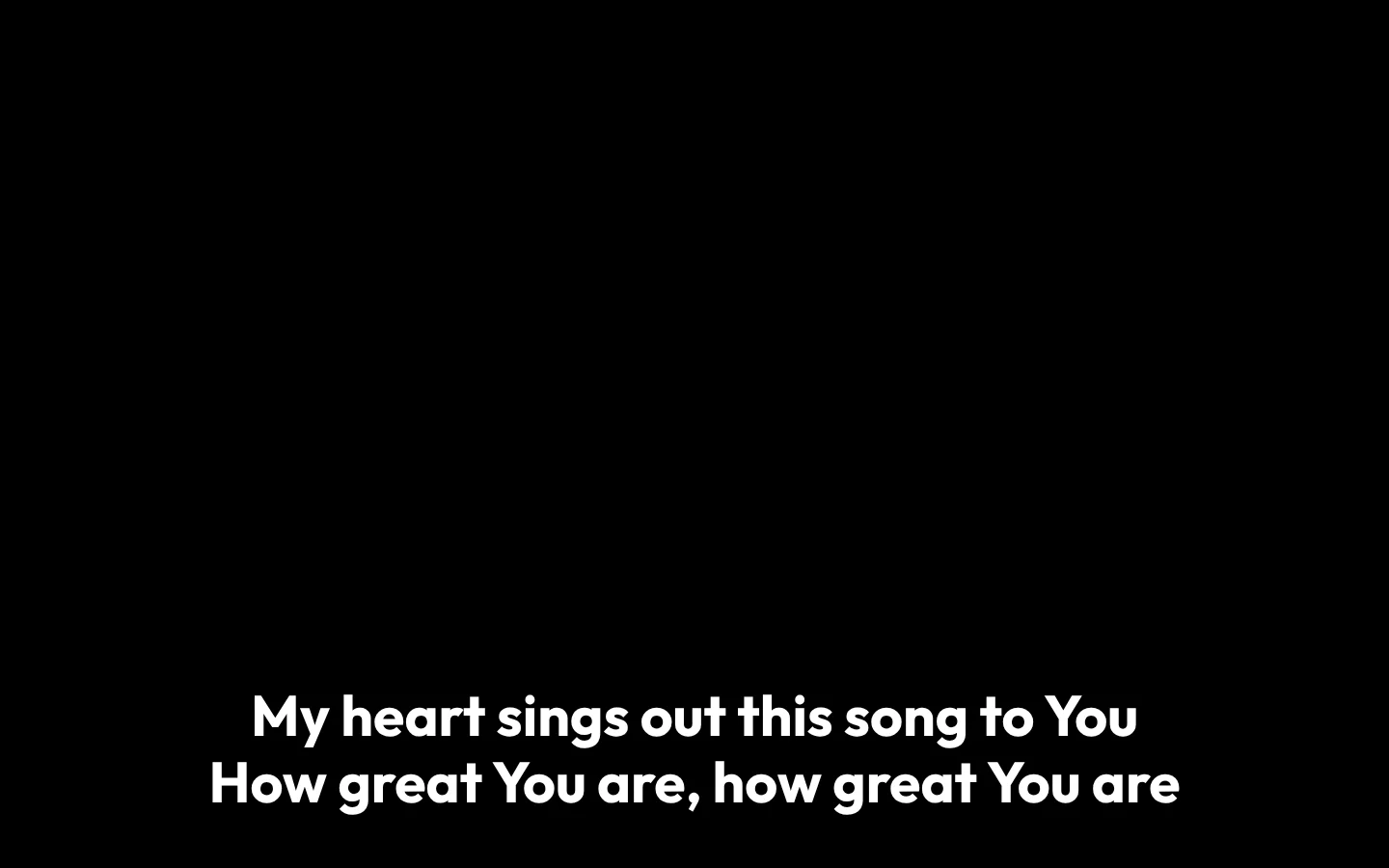
| Automatic | The default option: transparent inside OBS and black on any other screen. |
| Transparent | OBS or another program that reads web pages with transparency. |
| Black | An ATEM or another HDMI switcher with a luminance key (luma key). |
| Green | An ATEM, OBS or another switcher with a chroma key. |
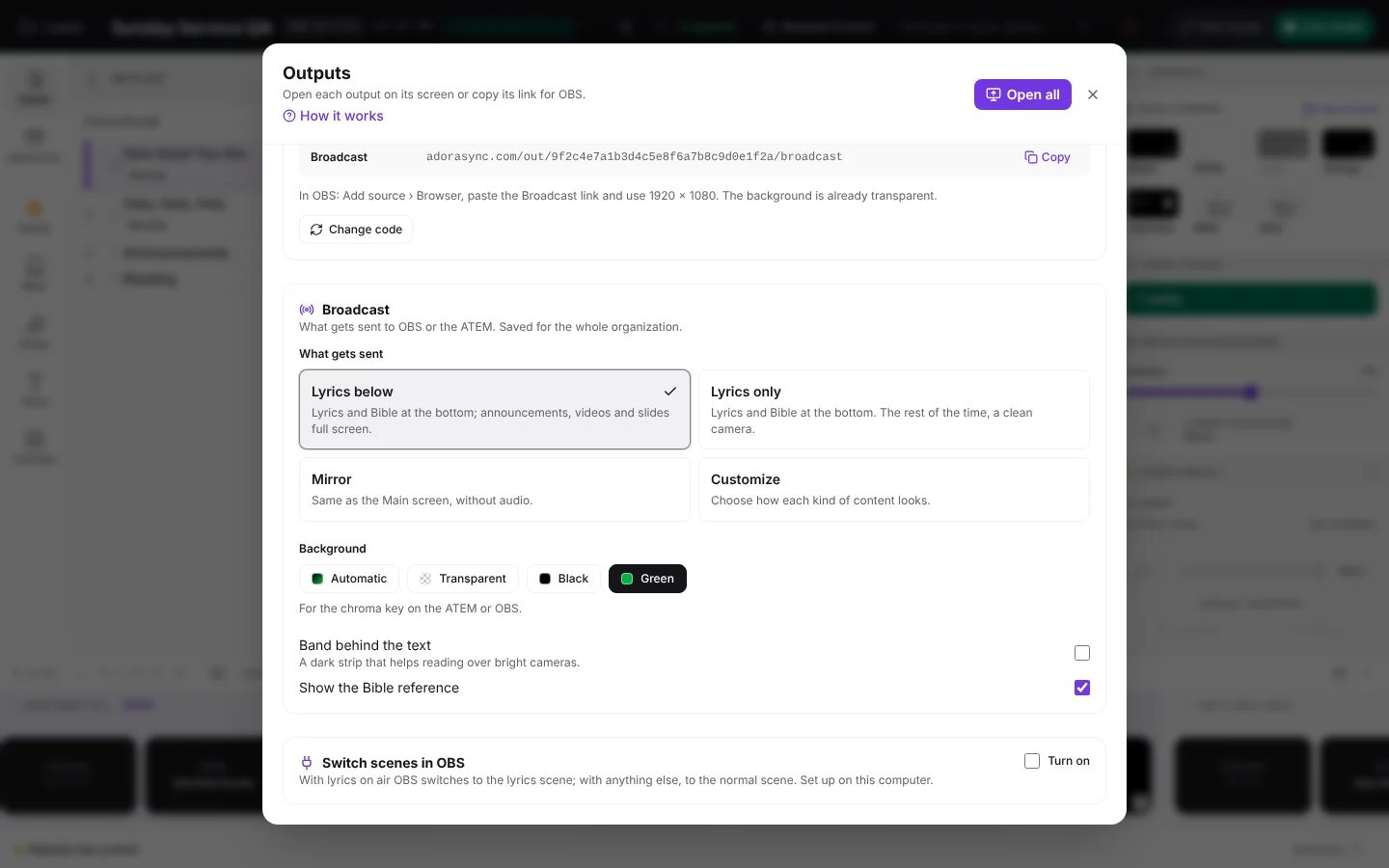
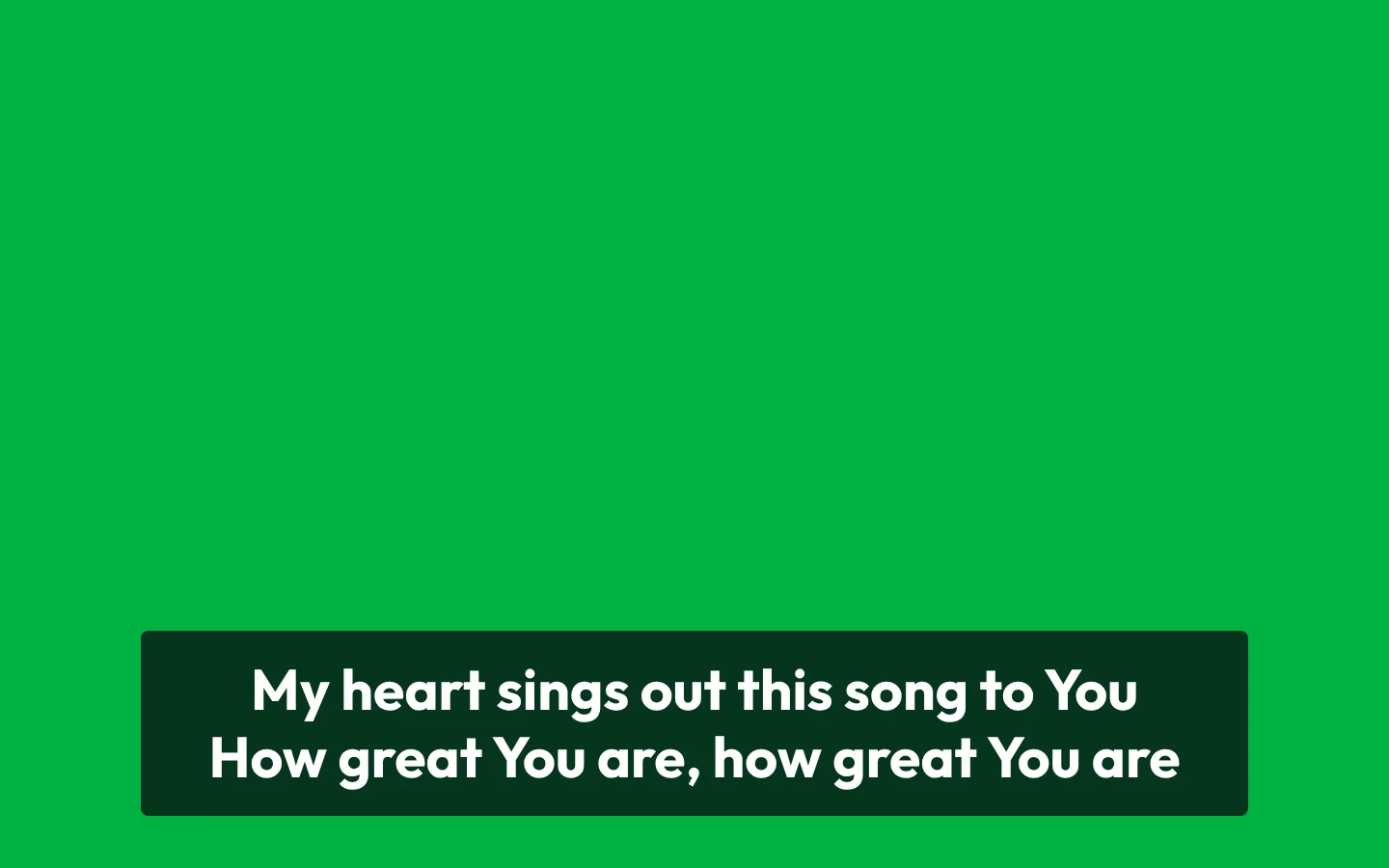
Turn on Band behind the text if the camera has light backgrounds and the lyrics are hard to read. Show the Bible reference adds the reference below the verse.
Connect OBS
In the Outputs panel, the Fixed link for OBS section has one link per output that always shows whichever program is live. You set it up once and don't have to change it every Sunday.
- In Fixed link for OBS, tap Copy on the Broadcast row.
- In OBS, in the camera scene, add a source: Add source › Browser.
- Paste the link in URL and use width 1920 and height 1080.
- Place the browser source above the camera. The background already arrives transparent: you don't need filters.
Tip:If no program is live, the fixed link shows a waiting notice and connects by itself when the service starts. If someone knows the link who shouldn't, tap Change code: the previous links stop working.
Connect an ATEM over HDMI
- Connect an HDMI output from the computer to a free input on the ATEM.
- In the Outputs panel, on the Broadcast card, choose that screen under Screen on this computer and tap Open.
- Leave the Background on Automatic or Black.
- On the ATEM, turn on an upstream key of type Luma with that input as both fill and key. If you chose a green background, use a chroma key.
Switch scenes in OBS
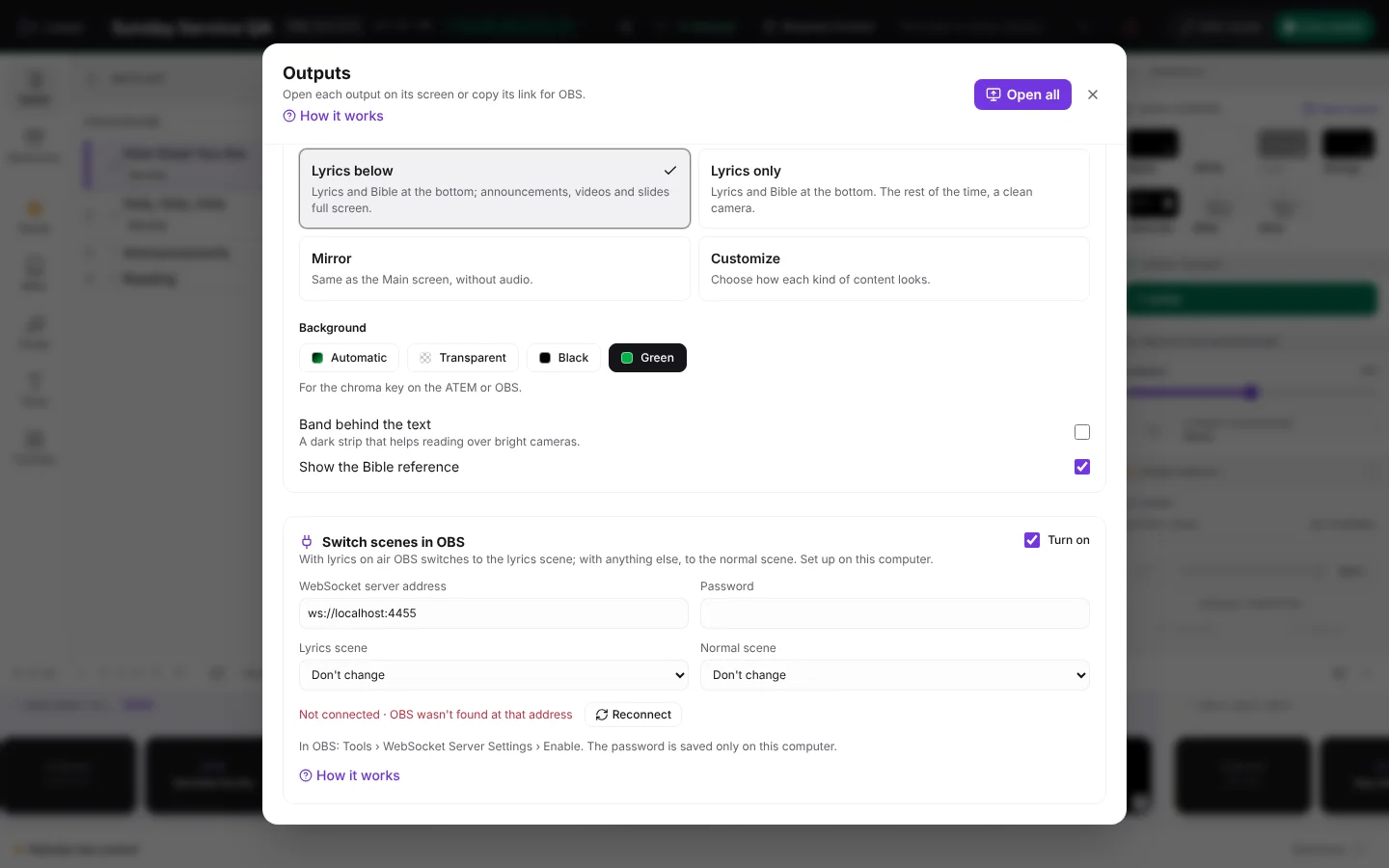
If you use OBS on the same computer as the live panel, it can switch scenes by itself: to the lyrics scene when a song or a verse is on air, and to the normal scene for everything else.
- In OBS, open Tools › WebSocket Server Settings and enable the server. Copy the password.
- In the Outputs panel, under Switch scenes in OBS, check Enable and paste the password.
- Choose the Lyrics scene and the Normal scene.
Note:The OBS password is stored only on that computer; it is not shared with the rest of the team.
Frequently asked questions
Where do I set the green background?
In the live panel, tap Outputs and, in the Broadcast section, choose Background › Green. It is also in Settings › Display › Outputs.
Does the livestream carry the audio of videos?
No. The Broadcast output is always muted so the sound isn't duplicated; audio comes from your sound desk.
Do I need a separate computer for the livestream?
No. You can use the same computer as the live panel with OBS, or a second HDMI output from the same computer to the ATEM.
The lyrics look too big or too small.
The size adjusts itself to the band at the bottom. If a verse is very long, it splits into two lines and the text shrinks as needed to fit.