Projection
How to connect the projector with the program PIN
The projection screen is a web page. The computer connected to the projector or TV only needs a browser and the program's PIN: it doesn't install anything or sign in.
Where to find the PIN
Each program has its own 6-character PIN. You see it in the top bar of the editor and of the live panel, next to the program name.

Connect the projector computer
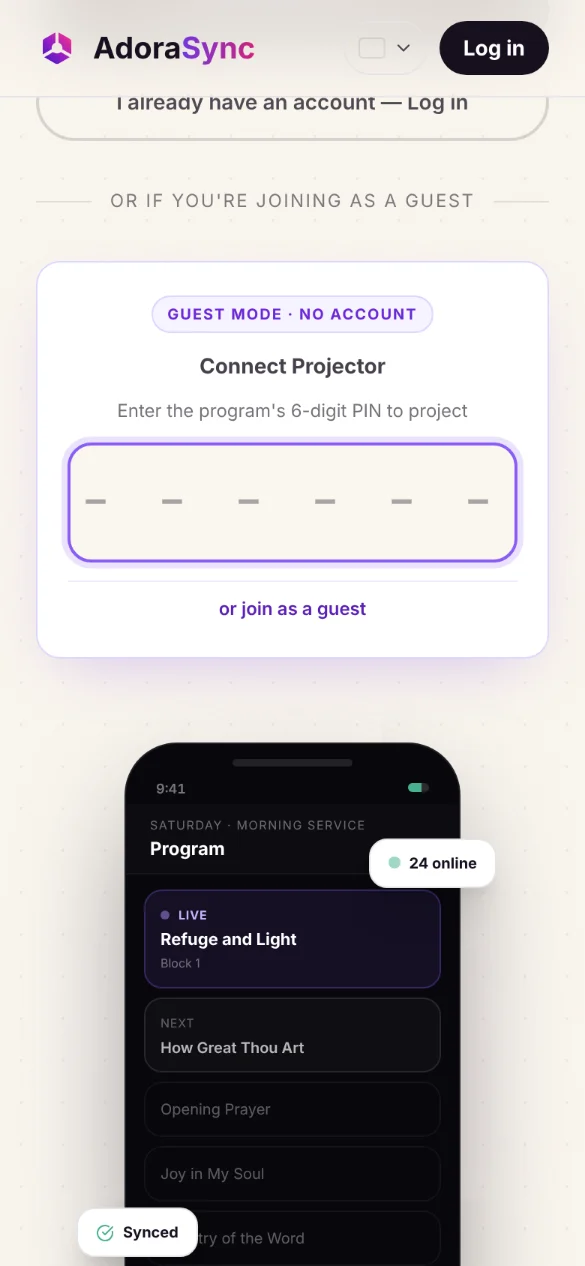
- On the projector computer, open adorasync.com in the browser.
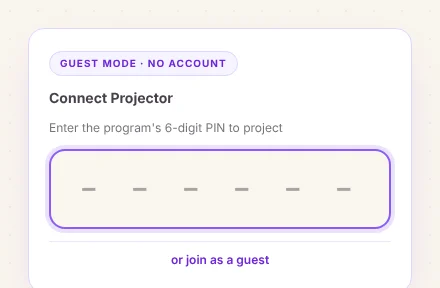
- On the home page, tap or connect to the projector, below the guest box.
- Type the program PIN. The projection screen opens instantly.
- Put the browser in full screen and leave that window on the projector output.
What happens next
Every time the live panel or the remote control advances a slide, the projector changes by itself. Nobody has to type lyrics or look for files during the service.

Frequently asked questions
Does the projector computer need an account?
No. The program PIN is enough; the projection screen doesn't ask you to sign in.
Can several screens project the same program?
Yes. Every computer that opens the projector with the same PIN shows the same thing at the same time.