Projection
How to use quick screens: black, white, logo and Bible
Quick screens cover the slide with a single click: black, white, the church logo, the background only, a Bible verse or a note. One more click and you are back exactly where you were in the program.
The screens in the right panel
In the live panel, on the right, Black, White, Logo, Background only, Hold screen, Interlude, Bible, Note and Last shown are always in view. Each thumbnail shows what will appear on the projector. Hold screen shows the image you chose for the section or the program; click again to go back to the program.
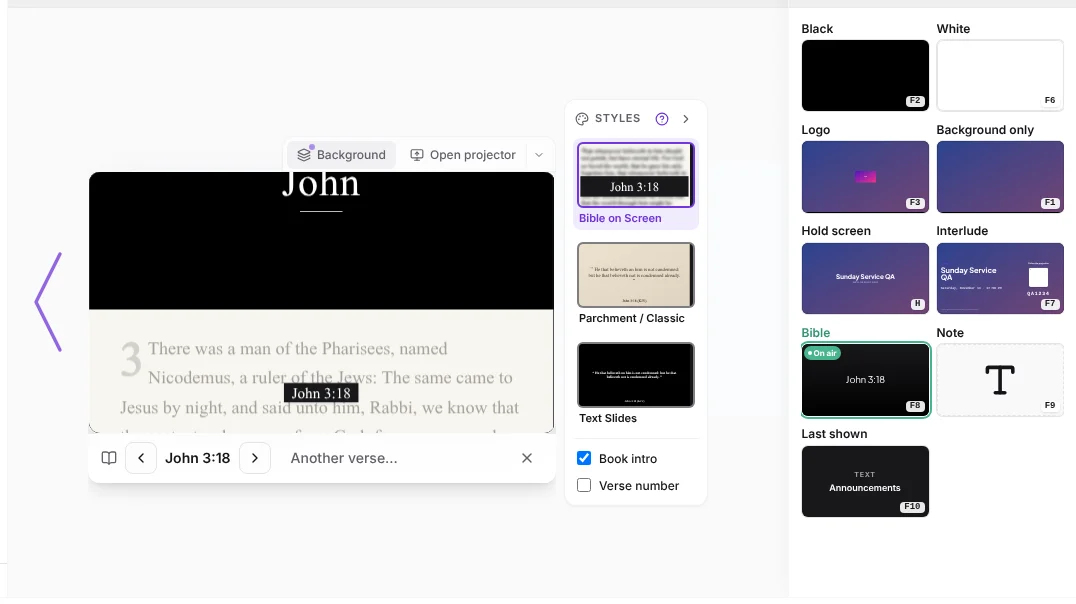
- Click a thumbnail: it goes out instantly and is marked in green with On air.
- Click the same one again, or Restore, to go back to the program slide.
- Keys still work: F1 background only, F2 black, F3 logo, F6 white, F7 interlude, F8 or V Bible, F9 note, H hold screen and F10 last shown. Each thumbnail shows its key in the corner.
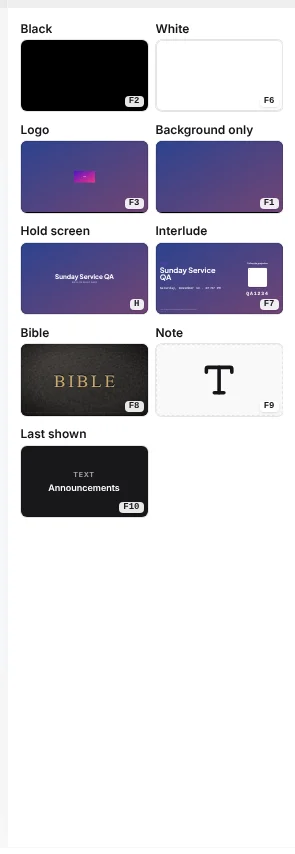
Tip:The thumbnails grow to fill the panel. To make them bigger, drag the left edge of the panel toward the viewer; the width is saved on that computer. Double-click the edge to go back to the default size.
Bible: the last verse one click away
The Bible screen remembers the last verse projected in the program. After a hymn, one click on Bible puts it back exactly as it was, even if someone else took control.
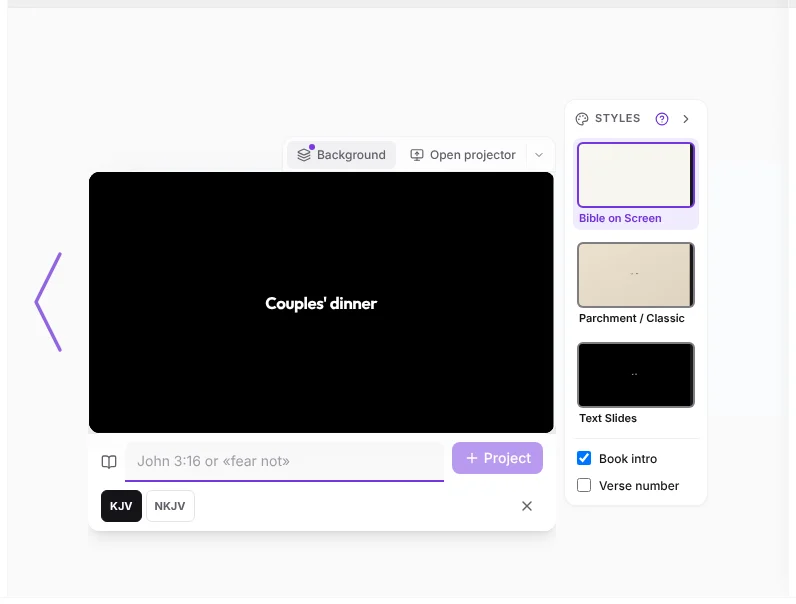
- If there is no verse yet, the click opens the reference field below the viewer, ready for typing.
- Type the reference (for example John 3:16 or jn 3 16) and press Enter or Project. A comma or the period from the numeric keypad turns into a colon by itself: John 3,16 becomes John 3:16.
- On a computer, the Bible panel on the left also opens with the whole chapter: the verse on air is highlighted and in view, and one click on another verse projects it. When you go back to Books you see all 66 books at once, without scrolling, and the History tab keeps what was projected.
- In that panel's search box, type a specific reference (for example Genesis 1:1) and press Enter: it is projected straight away, without clicking the verse. If you type only the chapter (Genesis 1), the chapter opens so you can choose.
- If you change the version (for example from KJV to NIV) with a chapter open, the panel reloads it by itself in the new version, with the same reference selected and in the same place.
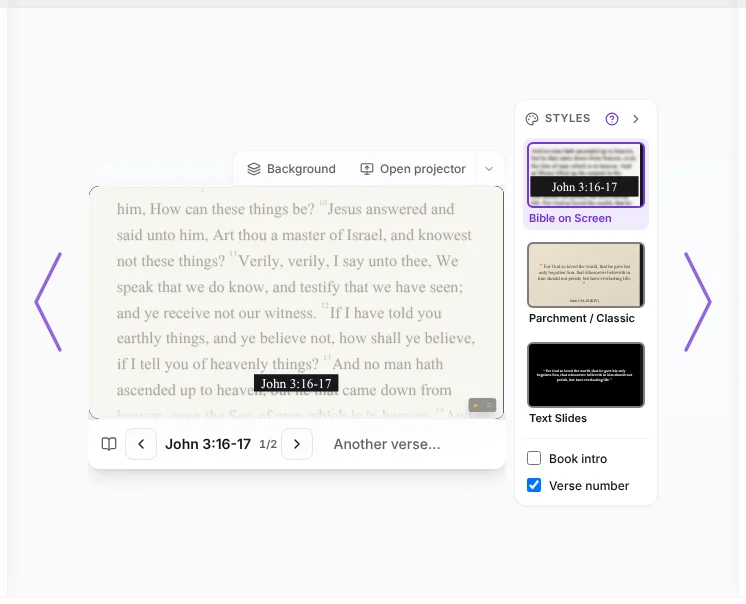
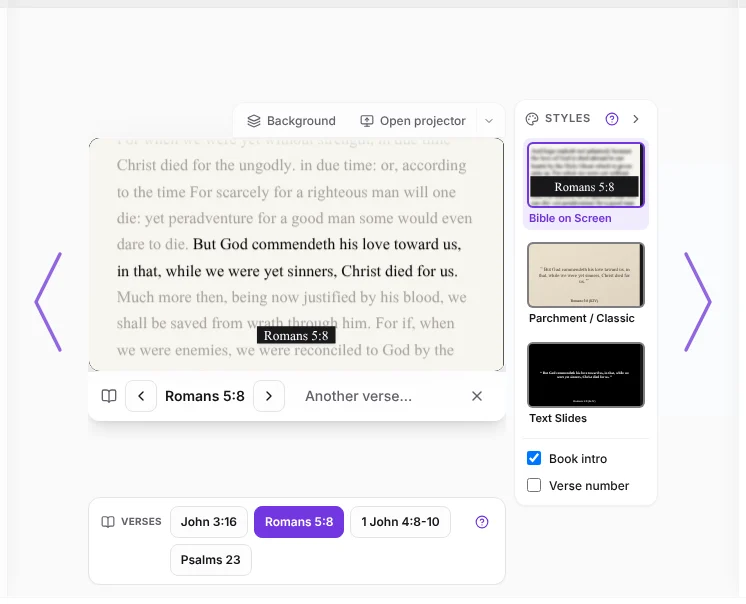
- With the verse on air, use the ‹ › arrows or the ← → keys to move to the previous or next verse. If you projected a whole chapter (John 1), the arrows go through its pages three verses at a time before moving to the next chapter.
- Another verse… opens the field to jump to another passage without taking down the one on air.
Change the Bible style live
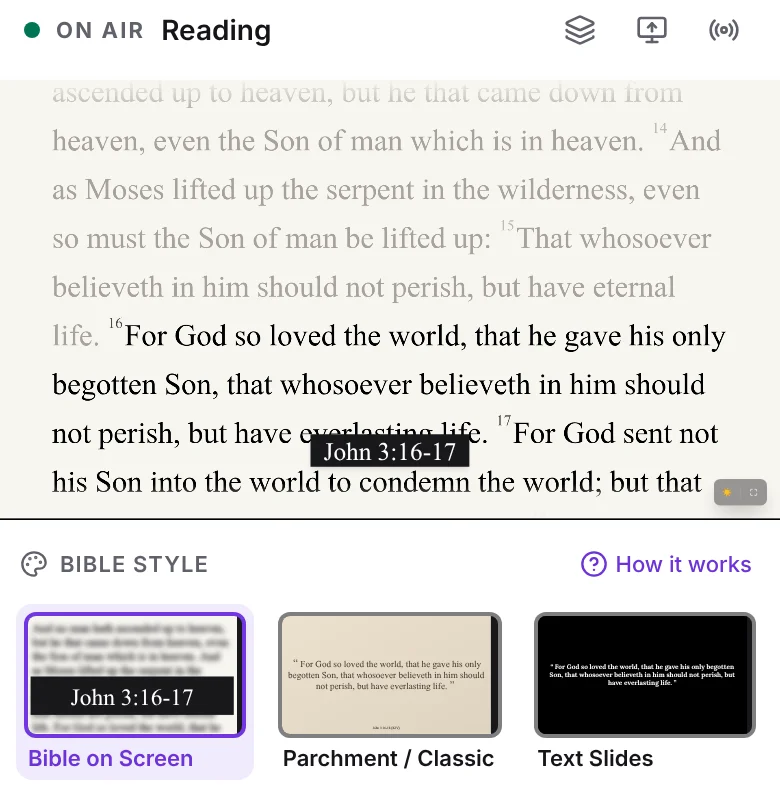
With a Bible item on air, three thumbnails appear to the right of the viewer with the same styles you choose when creating the item: Bible on Screen, Parchment / Classic and Text Slides. Each one shows the verse on air in that style.
- Click a thumbnail and the projector changes style instantly, without leaving the verse being read.
- The chosen style is saved in that program item: next time it comes out the same.
- Below the styles there are checkboxes to show or hide, instantly, the Verse number and, in Bible on Screen, the Book intro (the book name in large type when it starts). In Parchment and Text Slides the second checkbox is Reference at the bottom.
- If you don't need them, the › arrow hides the thumbnails and leaves only the Styles tab to open them again.
What a song shows on screen, and its audio
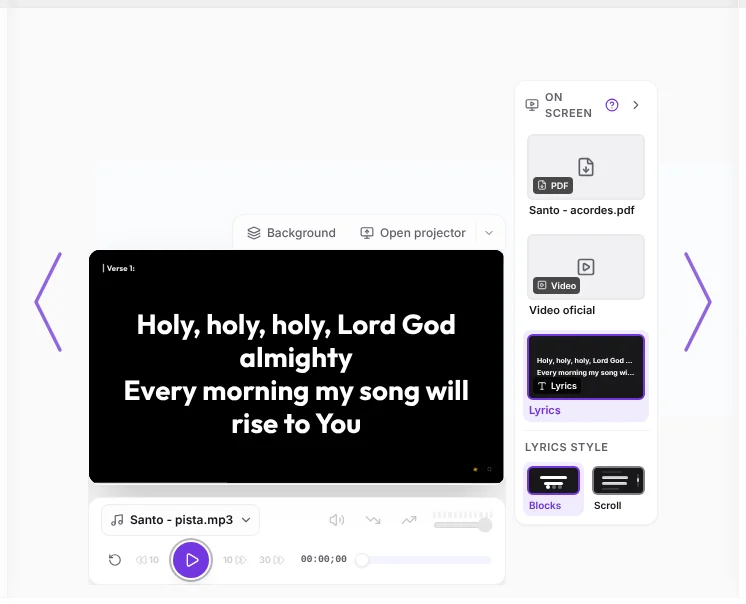
With a song on air, On screen appears to the right of the viewer: thumbnails to choose what the room sees. Audio is separate, in the audio bar below the viewer, so the two never get mixed up.
- The sources come first: the song's attachments and videos (PDF, images, YouTube) and the Lyrics. Tap one to project it.
- Below, in its own block, is Lyrics style: Lyrics in blocks shows each section (verse, chorus) on its own slide and Scrolling lyrics shows the current line large and the next one smaller, moving like a list. The change goes out instantly, is saved in that program item and, if another source was on screen, goes back to the lyrics.
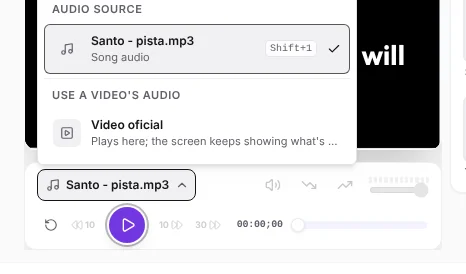
- To play a video's audio without projecting it, open the audio source in the audio bar (the track name) and pick the video under Use a video's audio. The time bar moves just like with a regular track.
- To project that video again, use the undo arrow next to its name in the audio bar. The › arrow hides the thumbnails and leaves the Screen tab.
Verses on the slide on air
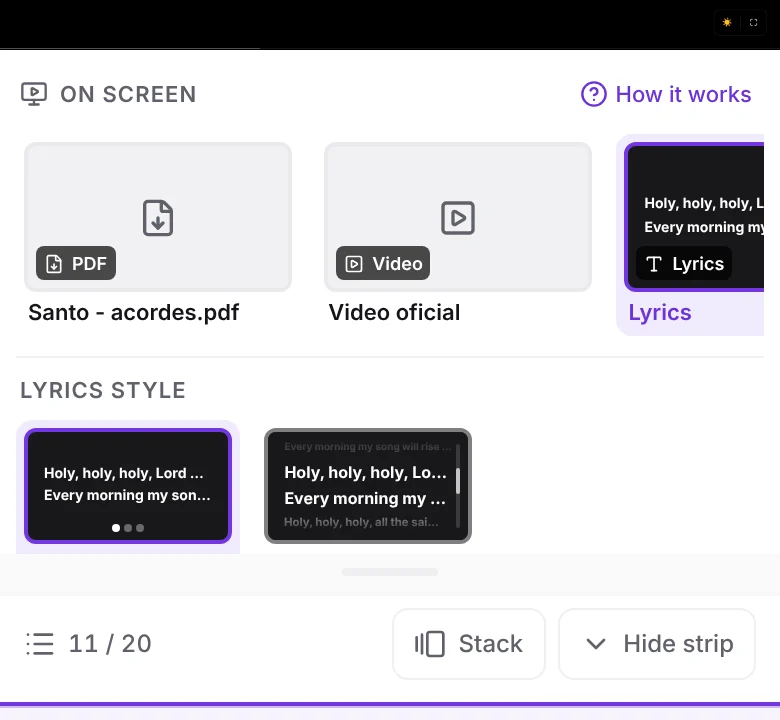
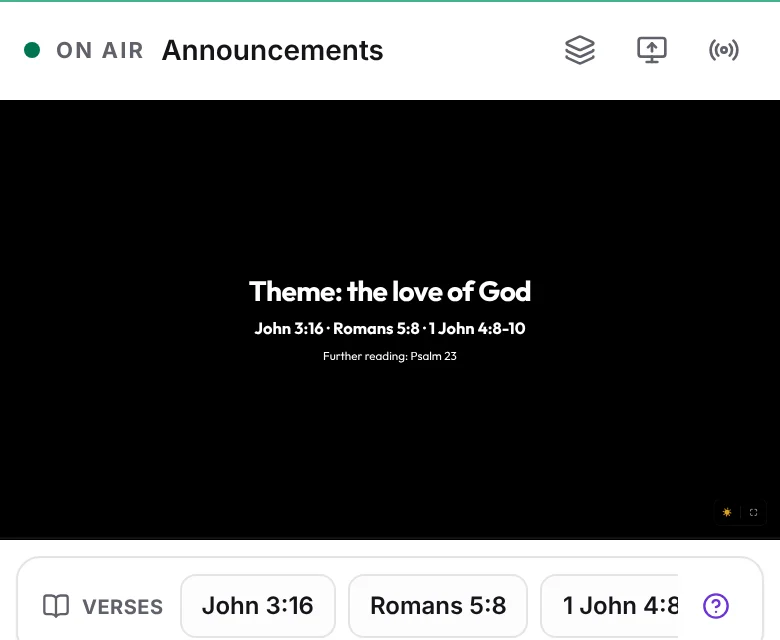
If the slide on air mentions verses (in the lyrics, a text, an announcement or a free slide), the Verses strip appears below the viewer with one button per reference, for example John 3:16 or Romans 5:8. That way you can read the passage being mentioned without typing it.
- Tap a verse and it goes out instantly as a Bible screen, with the version and style you already chose in the Bible panel. The one on air stays highlighted.
- It recognizes full names and abbreviations in English, Spanish, Portuguese and French: Jn 3:16, 1 Cor 13:4-7, Rom 8:28, 31, Jn 3:16; 5:24 or a whole chapter like Psalm 23. If a slide has three references, you'll see three buttons.
- To go back to the program, use the X on the Bible bar, as with any quick screen.
- The strip only appears when it finds references. A reference that doesn't exist in the Bible, like John 30:1, isn't shown.
Tip:The search runs on your device and is free on every plan: it doesn't use artificial intelligence or spend credits. For now it reads the slide's text; verses inside an image aren't recognized yet.
Note: a short message on screen
Use it for last-minute notices such as “Please stand” or “Welcome”. The first time you type the text below the viewer; after that the thumbnail keeps the last note and puts it back with one click.
Texts: what shows on screen and the history
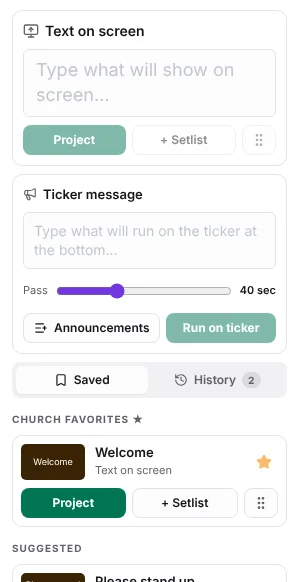
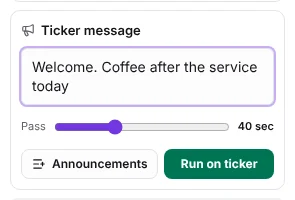
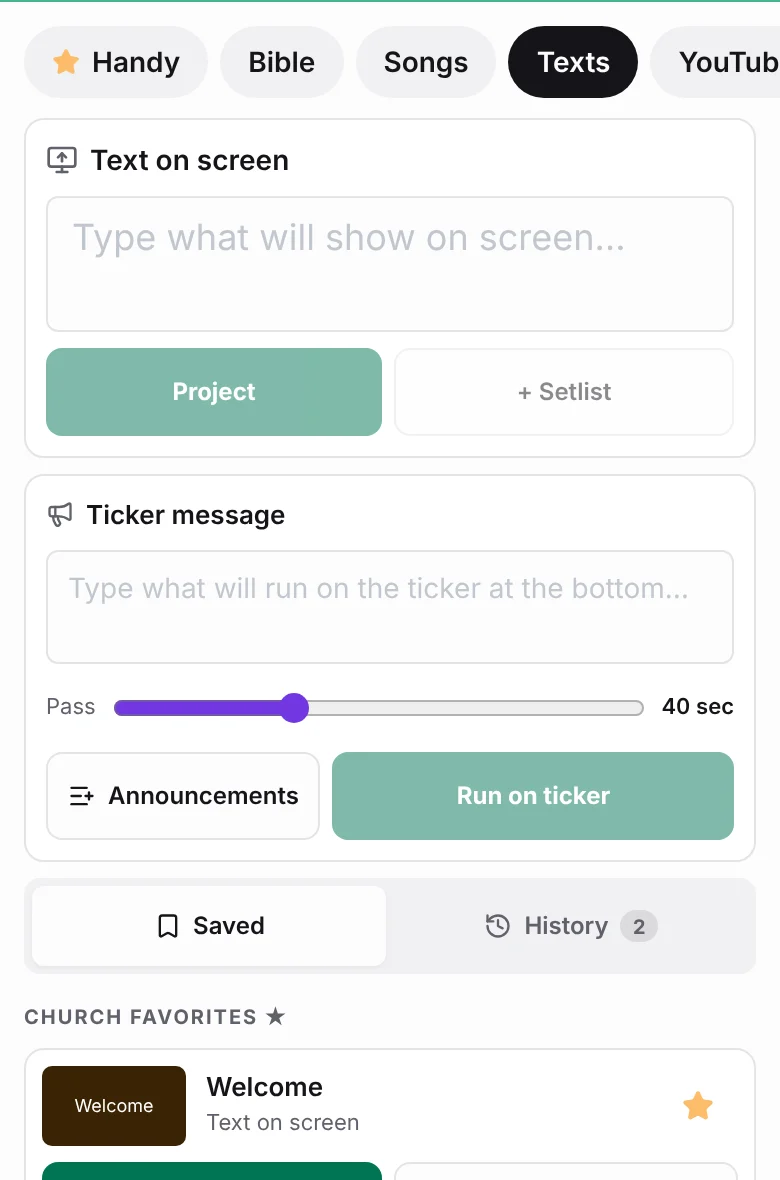
In Texts there are two boxes at the top. The big one, Text on screen, is for what covers the slide (for example “Welcome”). The one below, Ticker message, is for what runs at the bottom without covering.
- Type in Text on screen and tap Project (or press Enter). With + Setlist you add it to the program as a text slide, with what you typed.
- Saved has the church favorites (★), suggested texts and the church announcements.
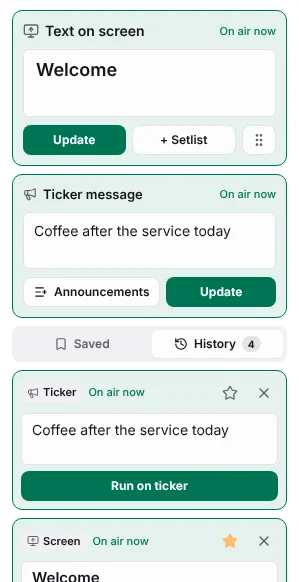
- History keeps everything you sent, marked as Screen or Ticker. Each one is in its own box: fix it right there and send it again. That same one is updated; no new one is created.
Bottom ticker: a running message that doesn't cover the slide
The ticker is a strip that runs at the bottom of the projector, over whatever is showing, until you remove it. Use it for notices that shouldn't cover the lyrics or the verse.
- In the live panel, open Texts (on a phone: Content › Texts).
- Type your message in Ticker message and tap Run on ticker (or press Enter). With Pass you choose how many seconds it takes to cross the screen.
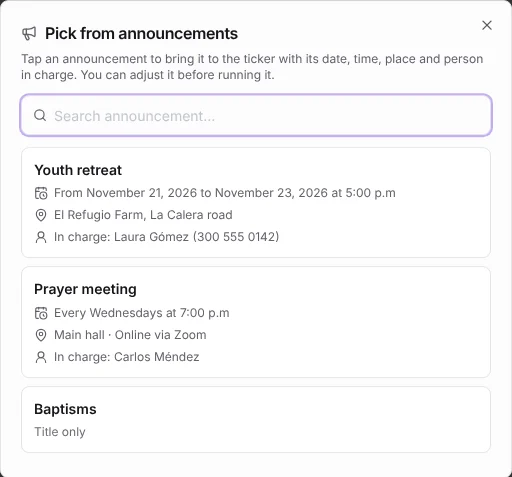
- To share a church announcement, tap Announcements: each announcement shows its date and time, place and person in charge. When you pick one, the field fills in with all of it; adjust it if you like and tap Run on ticker.
- Announcements are also below in Saved, with their details, and what you already ran stays in History to repeat or fix it.
- To remove it, use Remove announcement on the ticker bar above the viewer.
From a phone
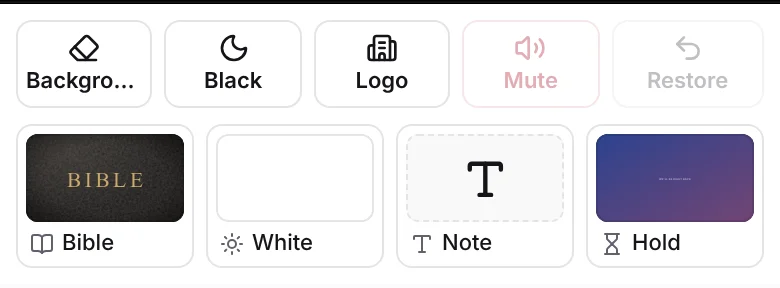
In the On air tab, Background only, Black and Logo are on the large buttons below the viewer, next to Mute and Restore. Right below, a row with Bible, White, Note and Hold (the hold screen). Each screen appears only once.
Frequently asked questions
Does the ticker cover the slide?
No. It runs in a strip at the bottom and leaves the lyrics, the verse or whatever is on air visible. Screen notes, on the other hand, do cover the slide.
Does a quick screen change the program?
No. It only covers what is shown on the projector; the setlist doesn't change and when you go back you are on the same slide.
Why is the logo grayed out?
Because the organization doesn't have a logo yet. Upload it in the organization settings and it will be available.
What if the logo is hard to see on the background?
With the logo on air, pick its color in the bar below the viewer: Automatic keeps it as is if it stands out and otherwise turns it white or black to match the background; White and Black paint it in a single color (best for logos with a transparent background); Original shows it unchanged. The choice is saved for the organization.
What happens if I advance the program with a quick screen on air?
The Bible, the note, white and background only are removed by themselves and the next slide comes out. Black and logo stay until you turn them off, so an accidental click doesn't uncover the screen.